DESCRIPTION: This knowledge base document provides a guide on how to configure and set up the Rounding Difference for Currency if you need some adjustment.
1. If you experience this error, you may not be able to input adjustment amounts like 0.1 or 0.01.
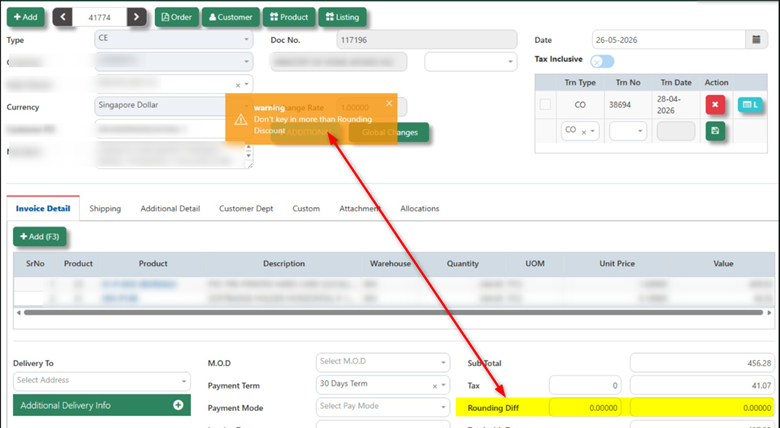
Figure 1
2. Configure under Currency Screen
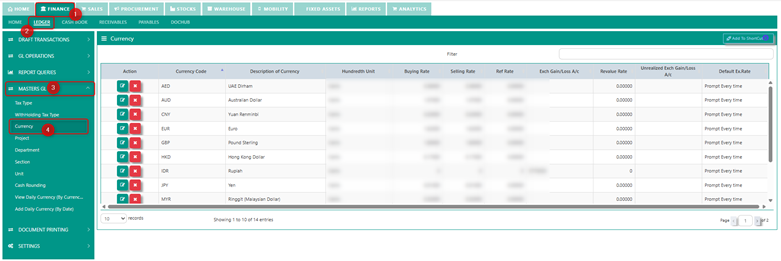
This is where you can configure the settings to allow the entry of adjustment amounts under Rounding Difference.
Also, please check the Base Currency and the Current Currency mapped to the transaction where the issue is occurring (example Figure 1), as this may affect the allowable adjustment values.
As shown in Figure 1, the currency being used is SGD. Please locate and review the SGD currency setup in the Currency Master screen.
3. Find the Currency that needs to be configure
Since SGD is being used as the sample currency for the adjustment, you may need to modify its currency settings.
After selecting Edit, you will see the following fields:
- Unit Price Decimals
- Total Price Decimals
- Exchange Rate Decimals
- GL Decimals
- Rounding Decimals
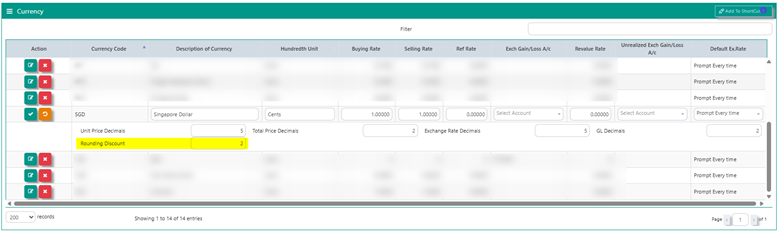
As highlighted, the Rounding Difference value is currently set to 0 or left blank. Because of this configuration, the system does not allow the entry of adjustment amounts with decimal values, resulting in the error message shown in Figure 1.
To enable adjustments, please set the Rounding Decimals to 2. This will allow you to enter adjustment amounts with up to two decimal places in the Rounding Difference field of the transaction (for example, in a CE Transaction).
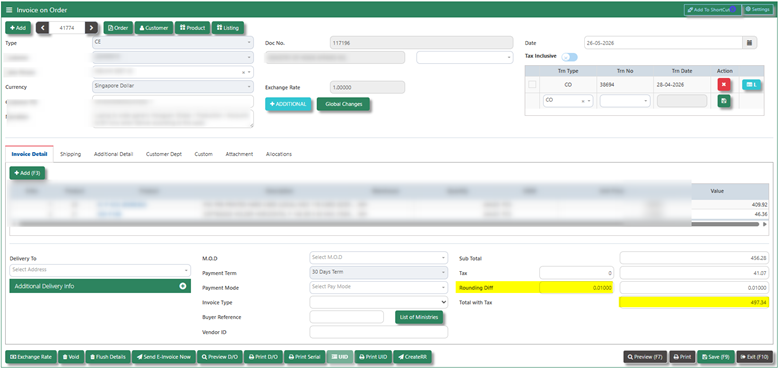
Once you have saved the changes, please return to the transaction where you want to apply the adjustment and try again.
As shown in the screenshot below, the system now allows you to enter adjustment amounts in the Rounding Difference field after the currency settings have been properly configured. This enables you to input decimal adjustments based on the number of Rounding Decimals specified in the Currency Master.
* END *
Was this article helpful?
That’s Great!
Thank you for your feedback
Sorry! We couldn't be helpful
Thank you for your feedback
Feedback sent
We appreciate your effort and will try to fix the article