A2000 ONLINE SUPPORT DEPARTMENT
KNOWLEDGE BASE
INVOICENOW PEPPOL COMPANY ACCOUNT ACTIVATION
Click here to download Registration Form
Email the form to DataPost (mention from A2000) to Louisa Loh <louisa.loh@datapost.com.sg>
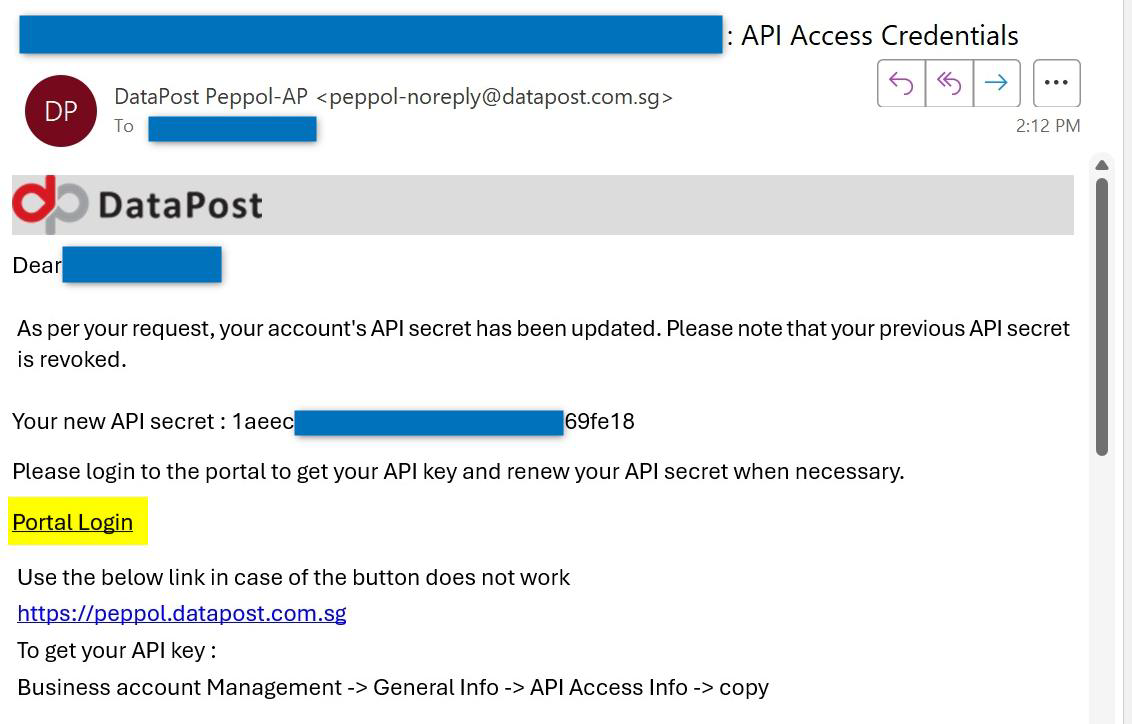
Registered Customer will receive this email and login to the Portal to setup their Password:
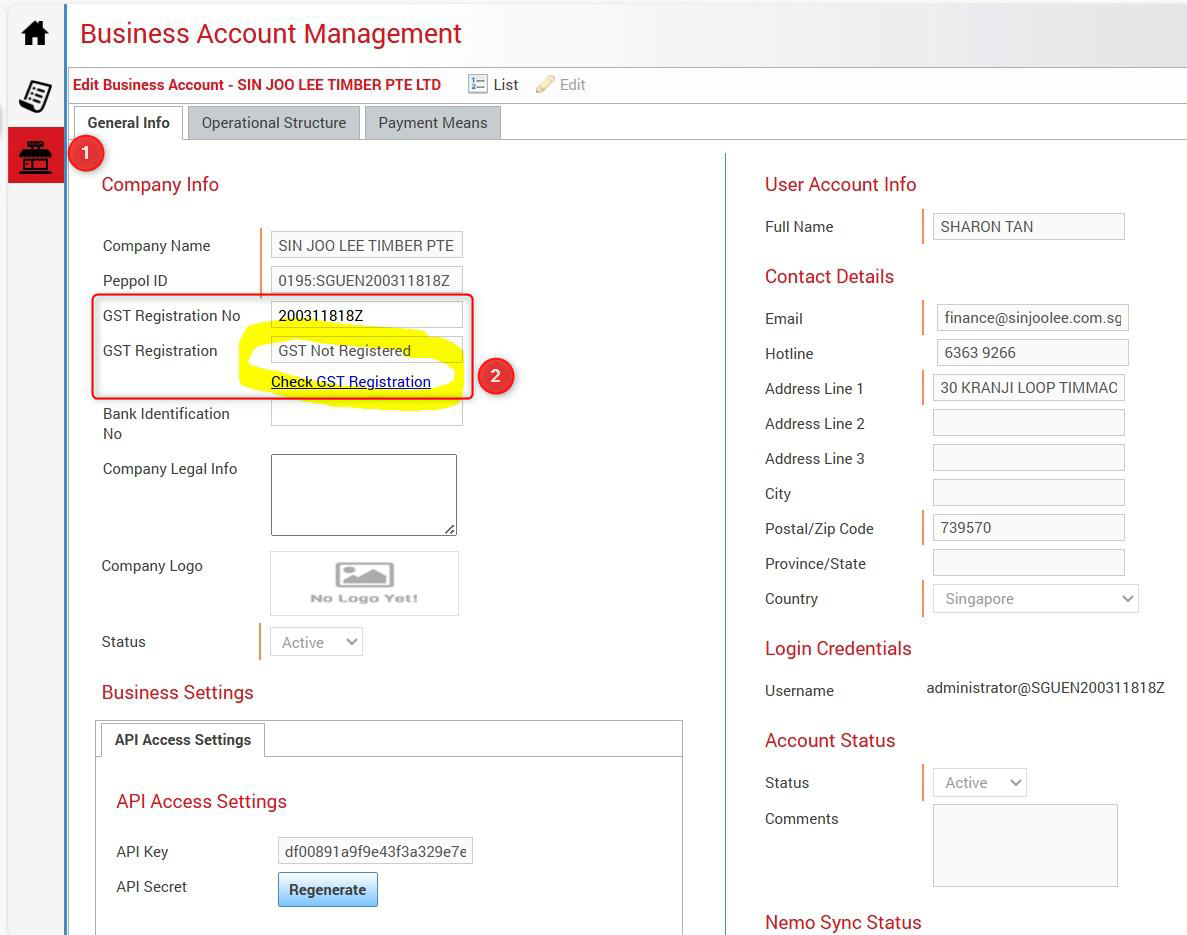
After Login, go ‘Business Account Management’ make sure GST No is correct and click ‘Check GST Registration’ to make sure the status updated to GST Registered.
Then, Click Submit.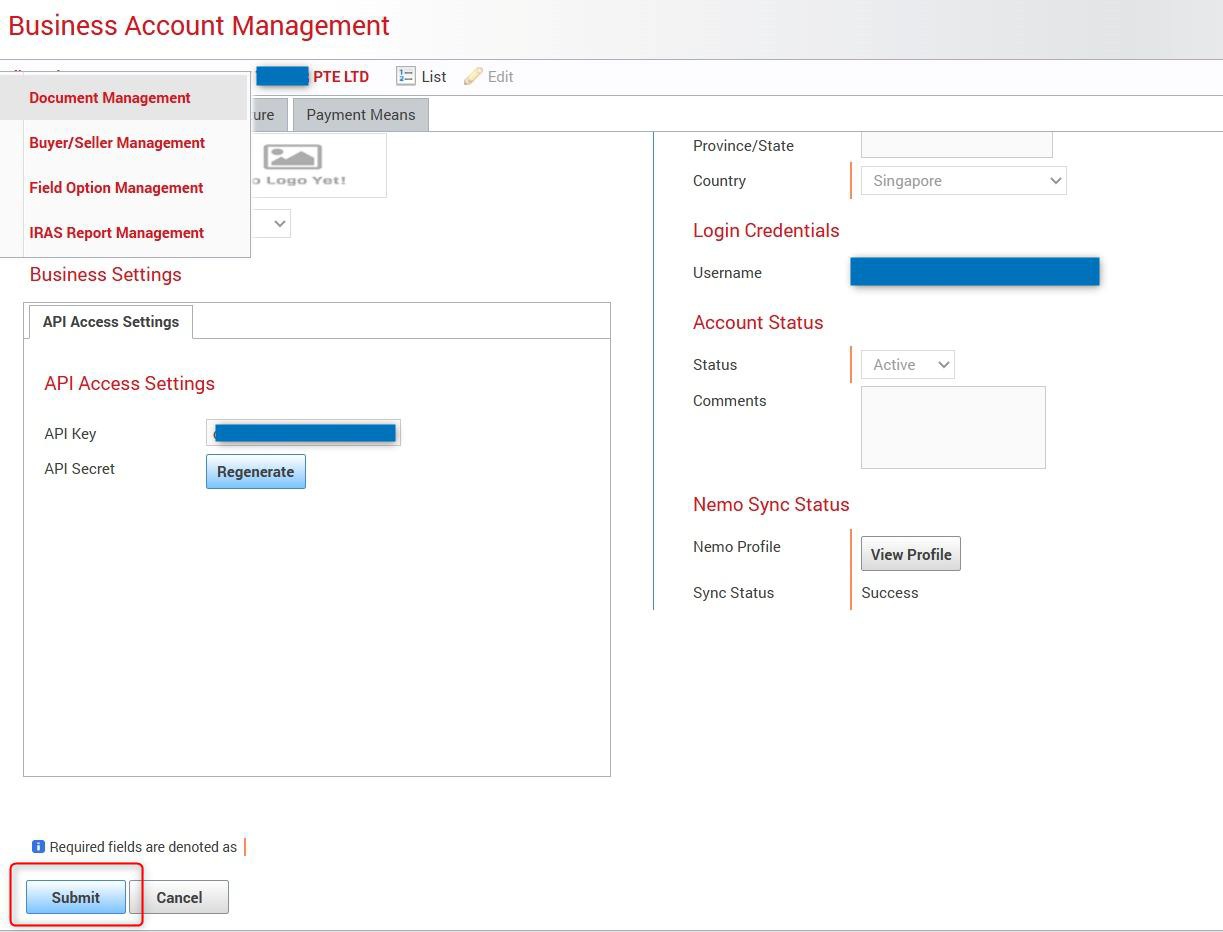
Registered Company will also receive this email to ACTIVATE the PEPPOL ID with their authorized SingPASS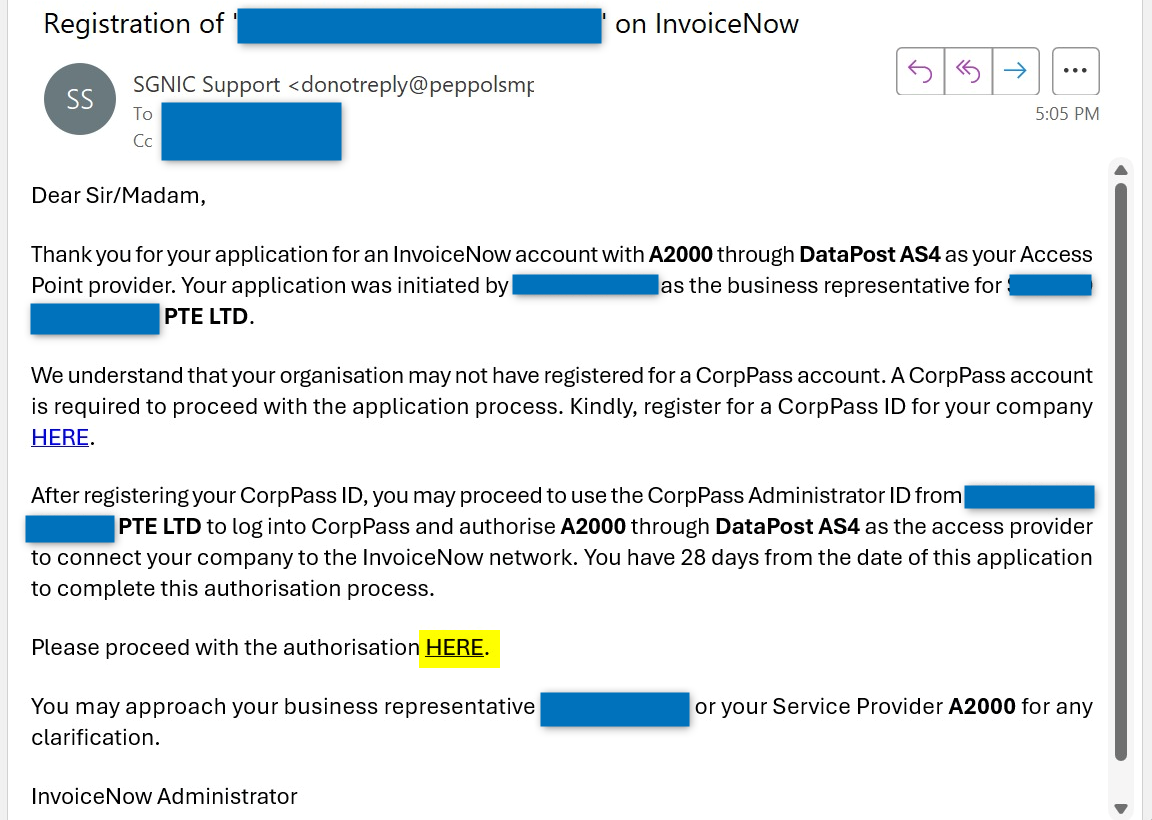
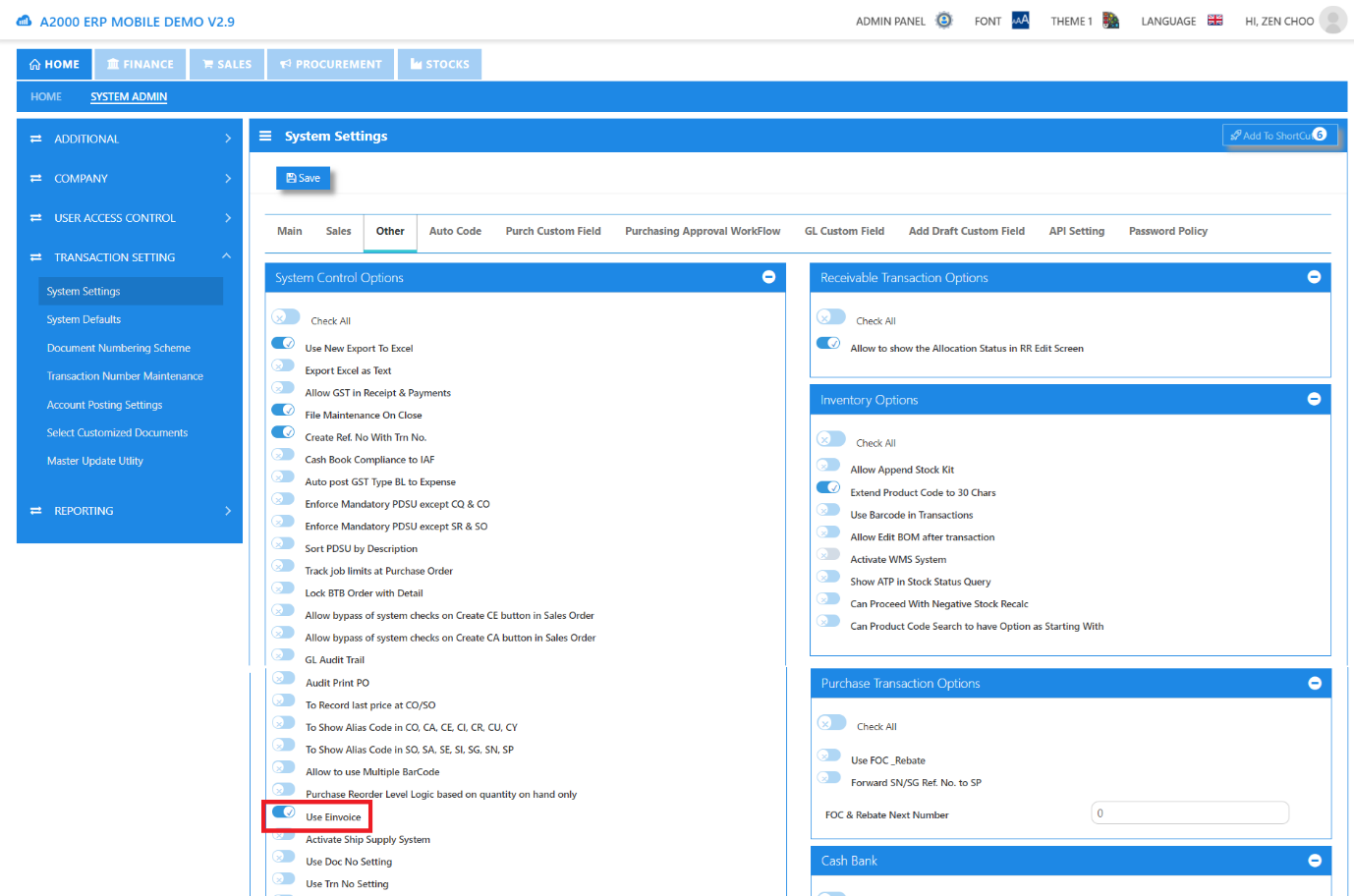
1. Activate “Use Einvoice” under HOME > System Admin > System Settings > Tab: Others
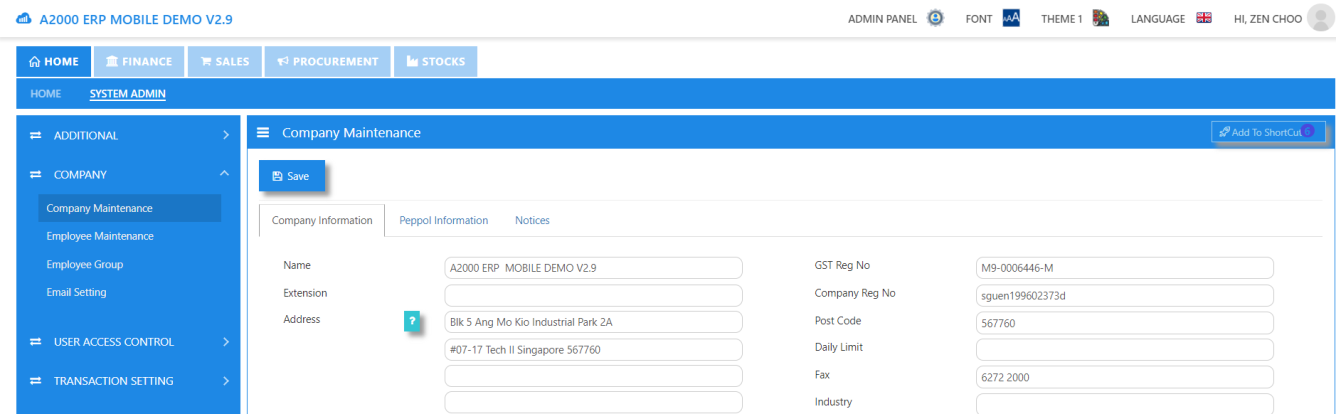
2. Update Company Reg UEN No. under Company Maintenance
GST Reg. No. is mandatory to activate C5.
3. InvoiceNow C5 Activation and Deactivation
1) A2000 InvoiceNow Provider: https://peppol.datapost.com.sg
2) API Client ID (From Portal)
3) Secret Key (Copy from Email)
4) Click SAVE
5) Click “Retrieve Company Peppol ID” to Get the ID.
6) Click “Activate C5” to activate C5.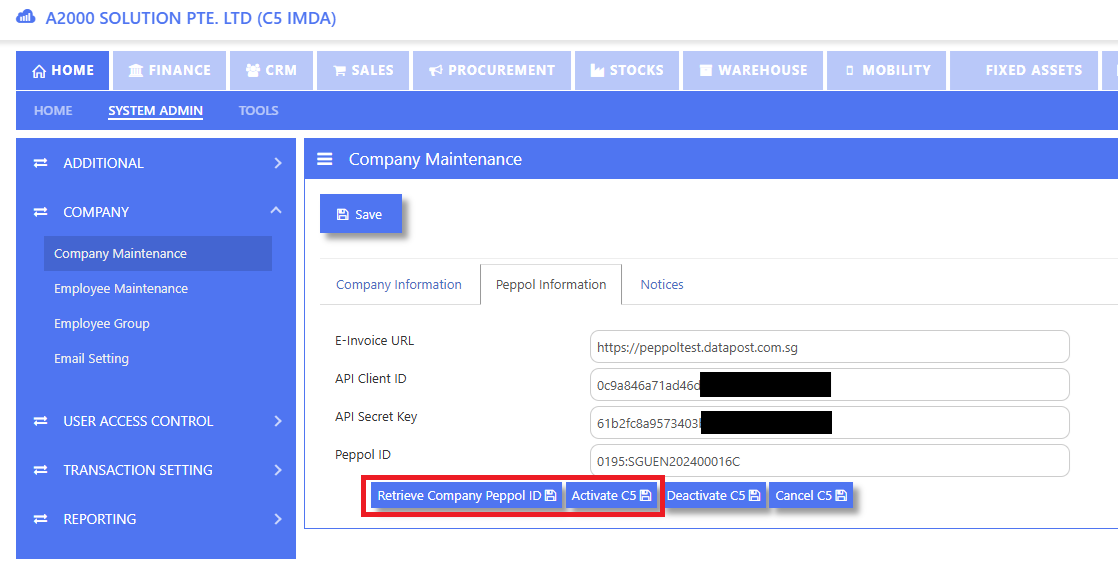
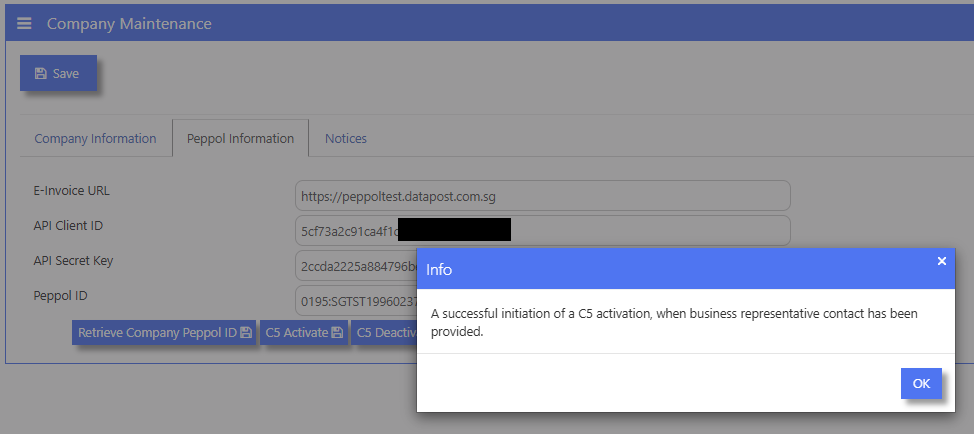
If C5 is already activated, the system will display the message: "C5 activation already exists.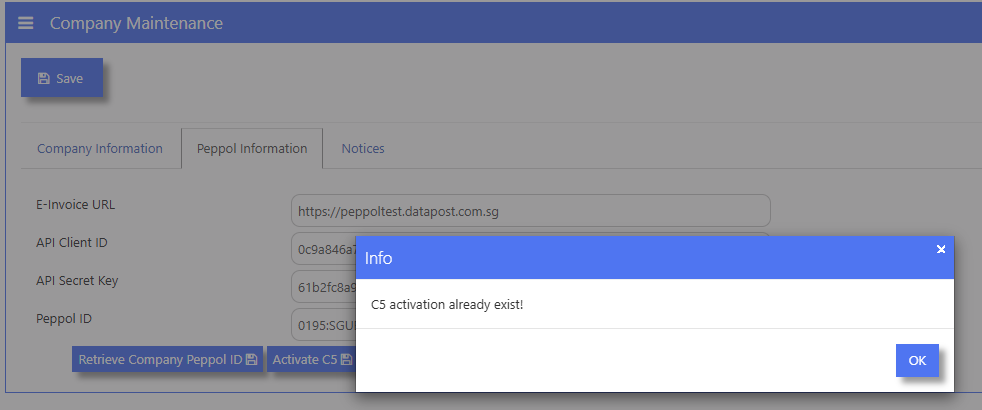
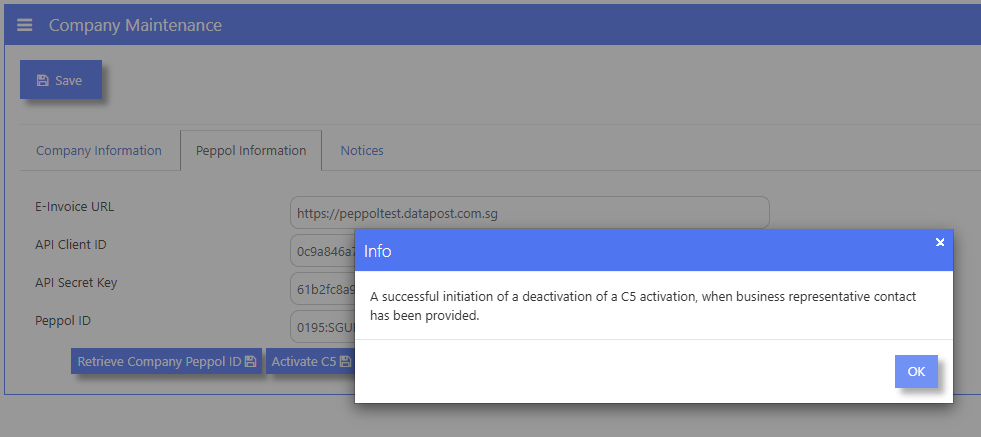
C5 Activation Status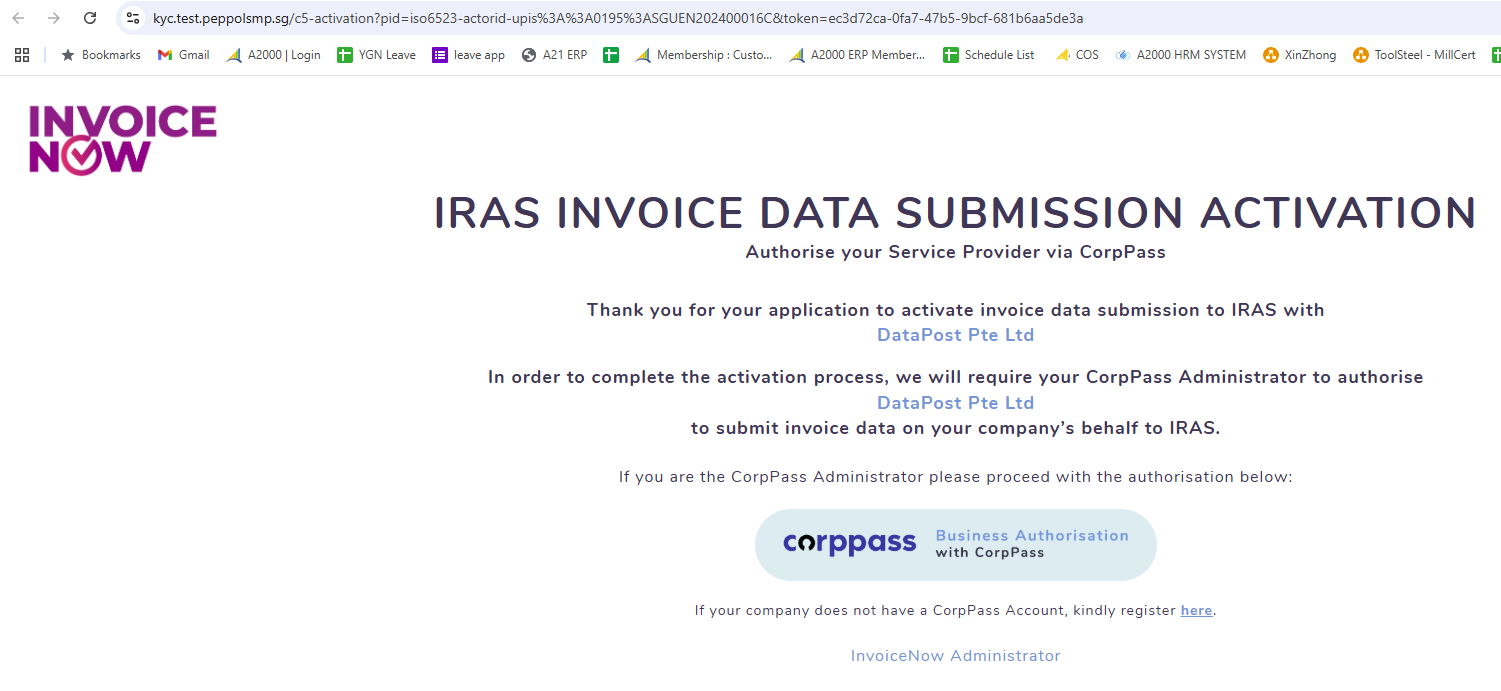
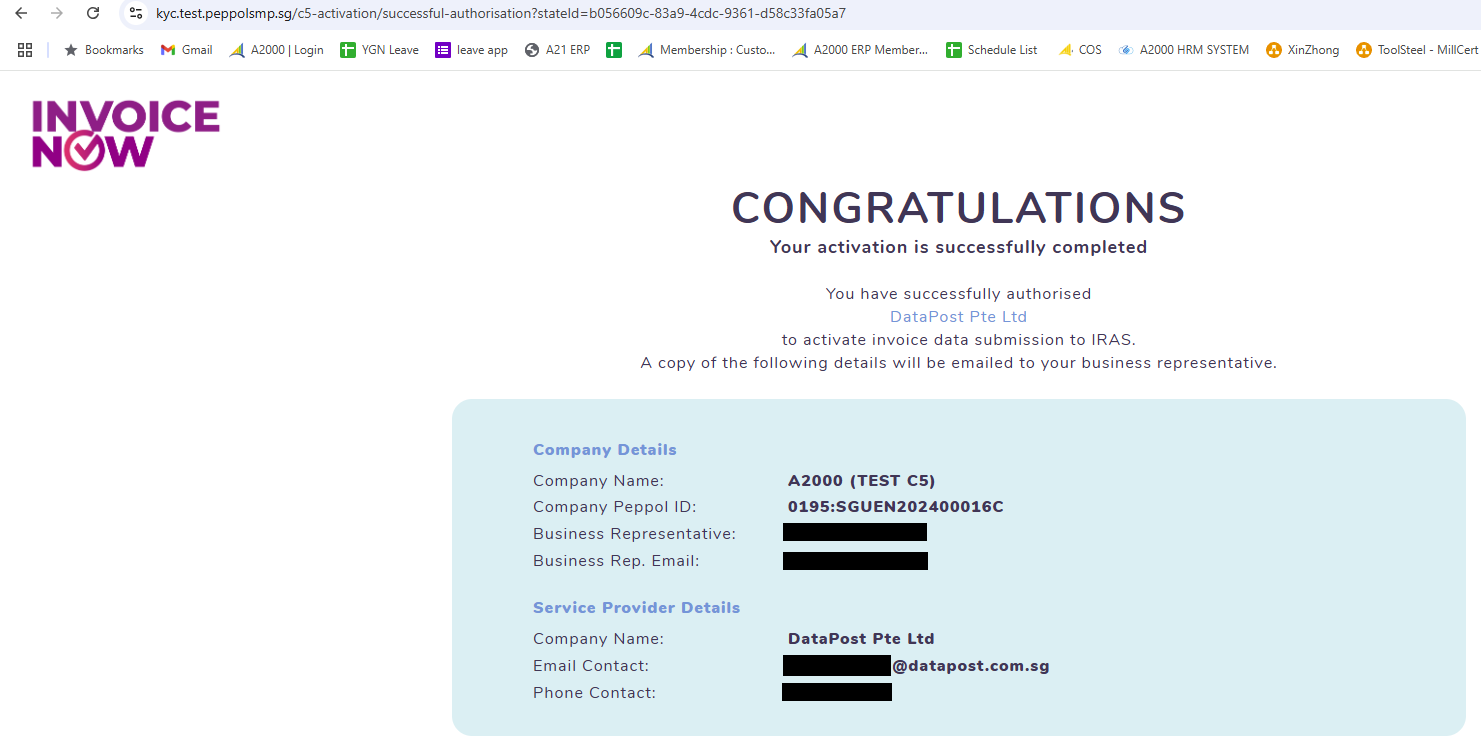
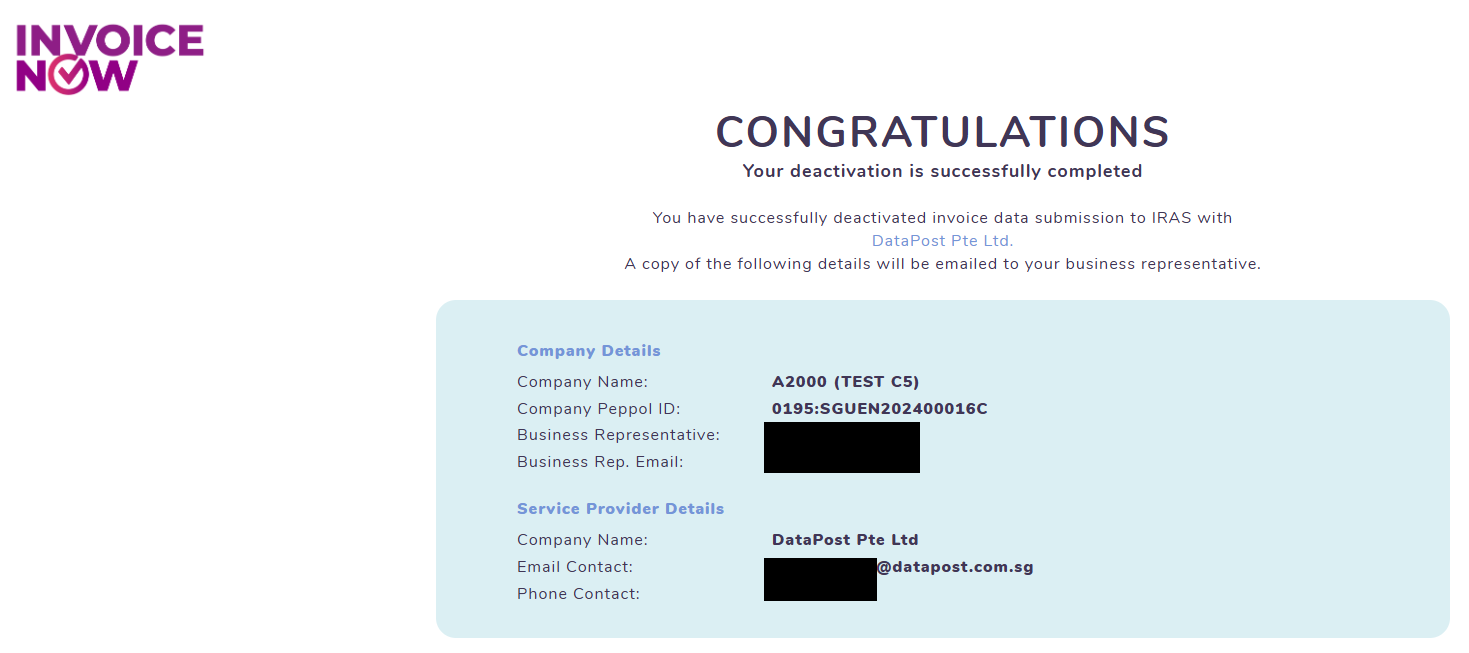
C5 Deactivation Status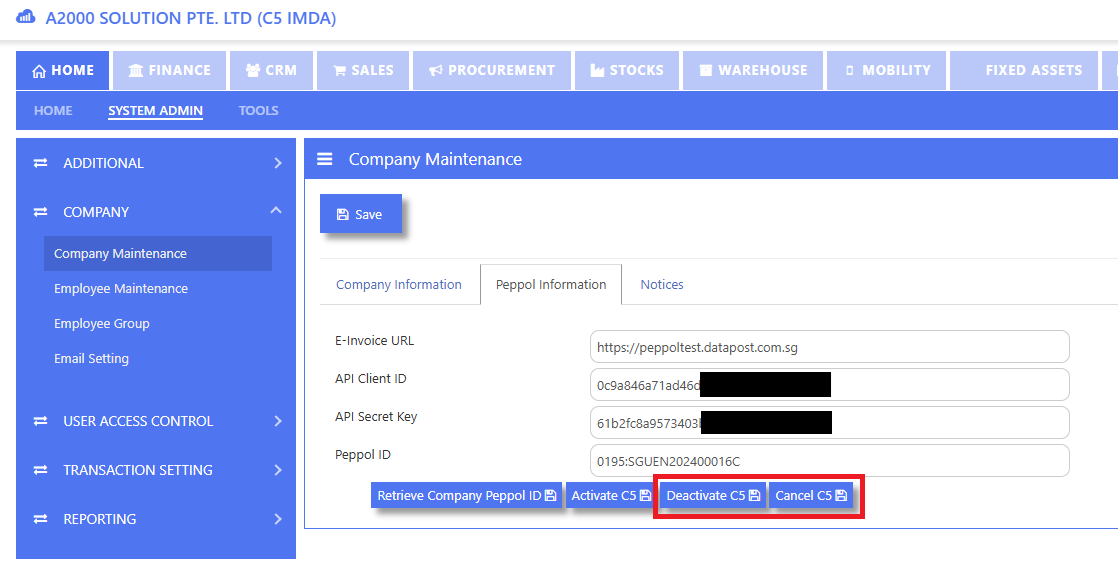
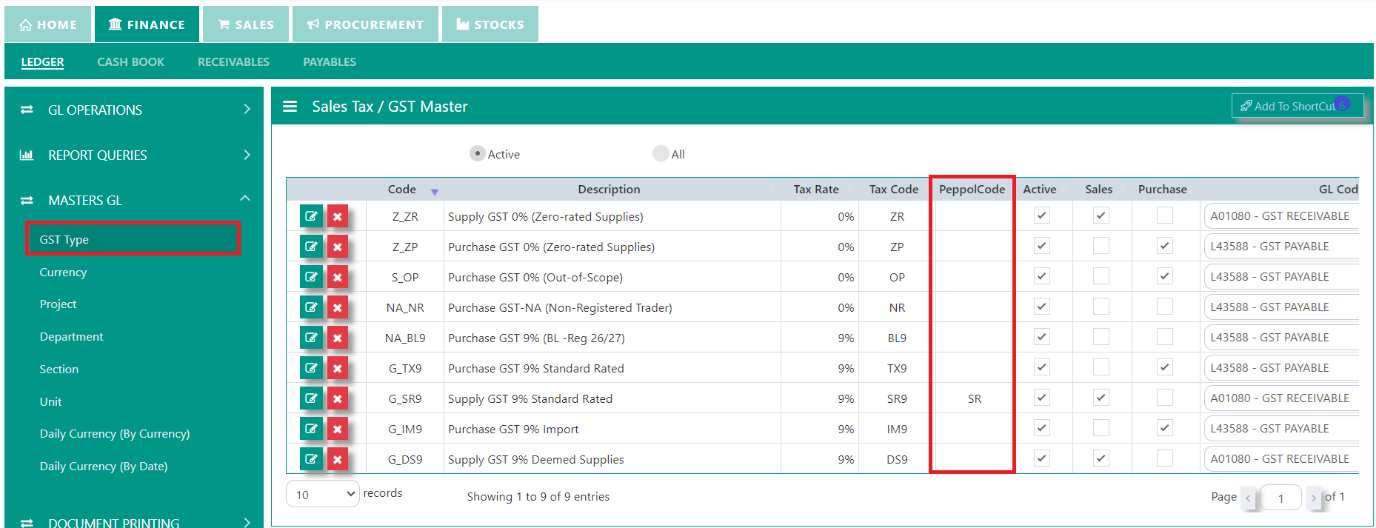
4. GST Tax Code Configuration
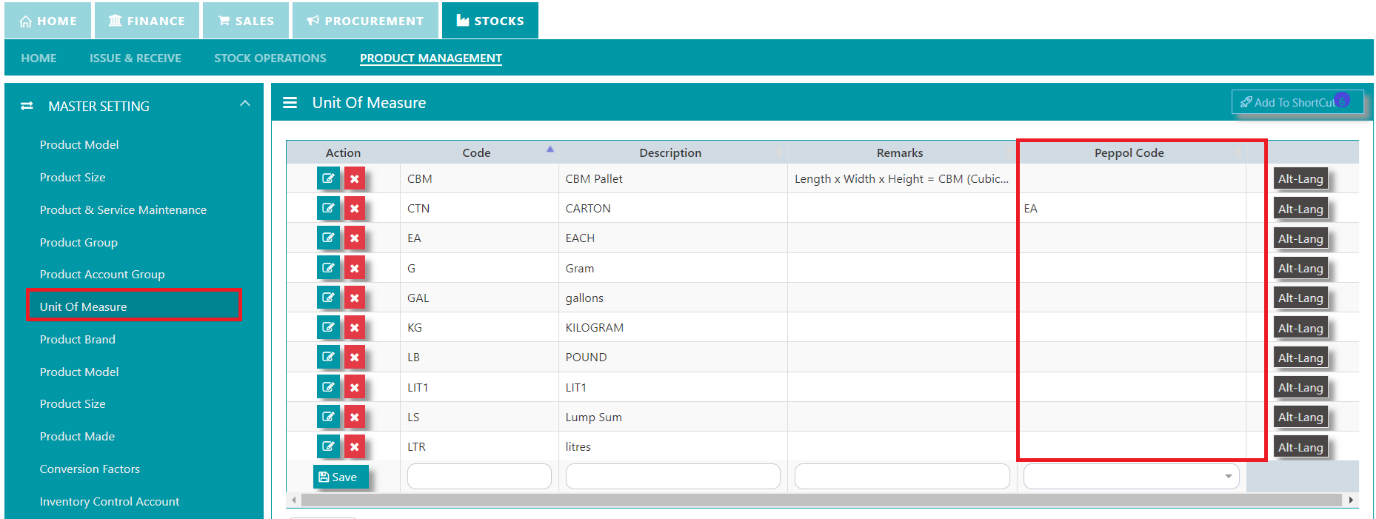
5. Product Unit of Measurement Configuration
6. GET Customer Peppol ID under “Customer Maintenance”
Fill in UEN and GST No and click “Retrieve ID” button.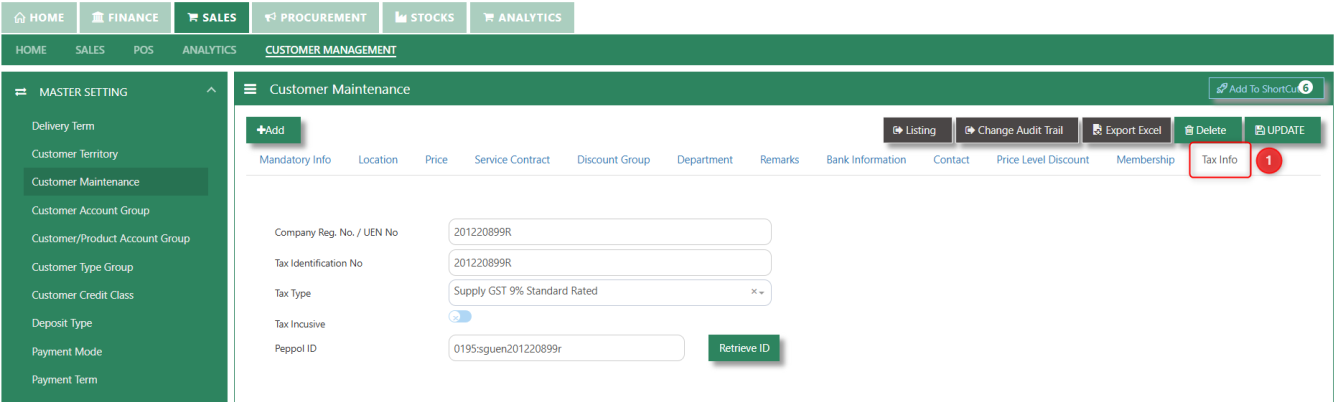
7. SEND Invoice via Sales Invoice Transaction
You can send the Invoice in Invoice on Order, Credit Invoice, Cash Invoice, and Invoice on DO.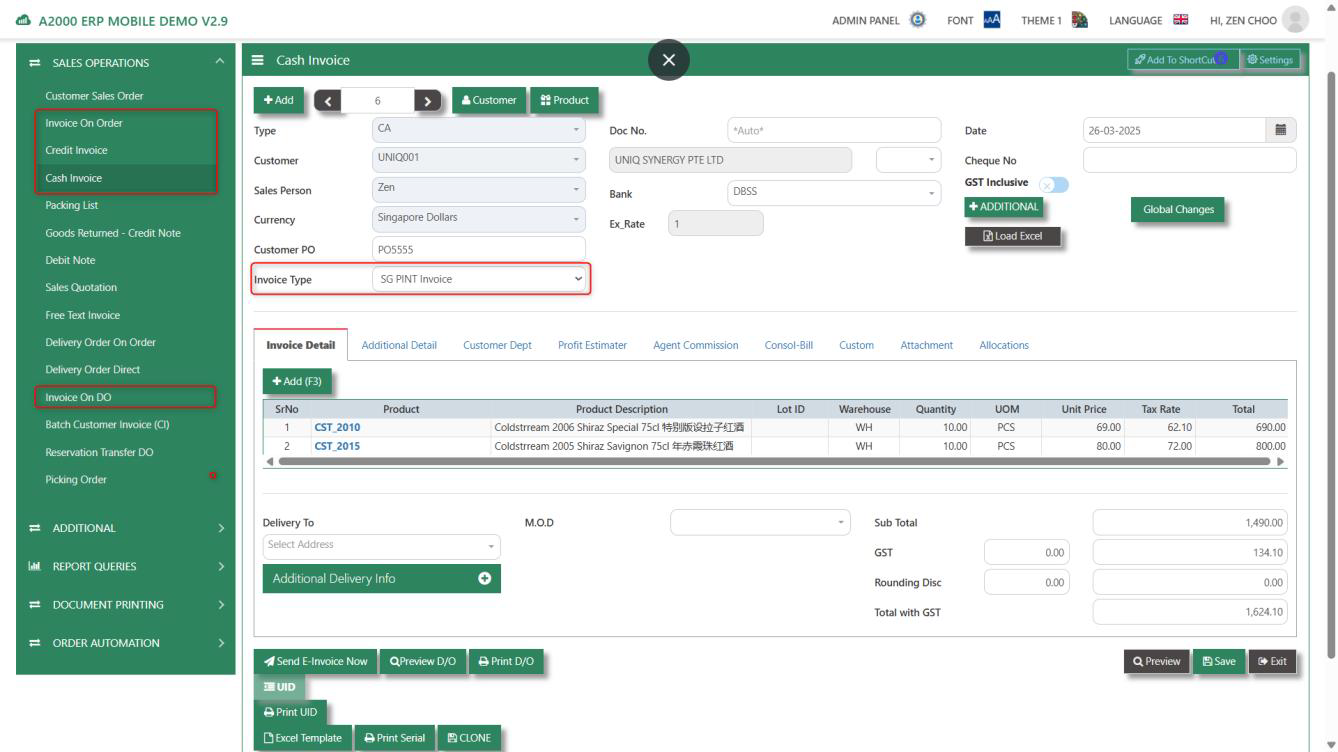
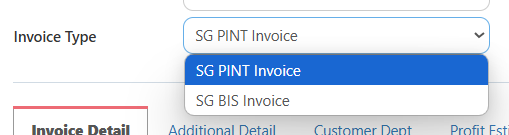
PINT (Peppol InvoiceNow Template)
• The global Peppol invoice standard.
• Used in multiple countries, making it suitable for cross-border transactions.
BIS (Business Interoperability Specifications)
• A simplified Peppol invoice format designed for Singapore businesses.
• Tailored to meet local GST and business needs.
8. SEND Invoice in Selection or in Batch
Home > System Admin (Full User Access) > Additional > E Invoicing Dashboard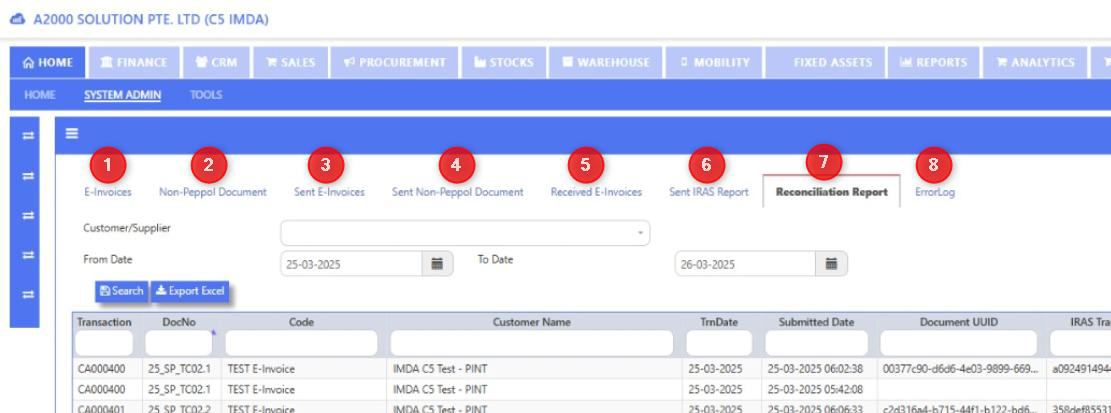
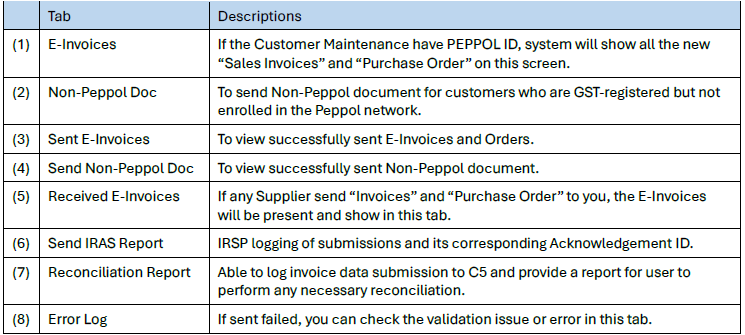
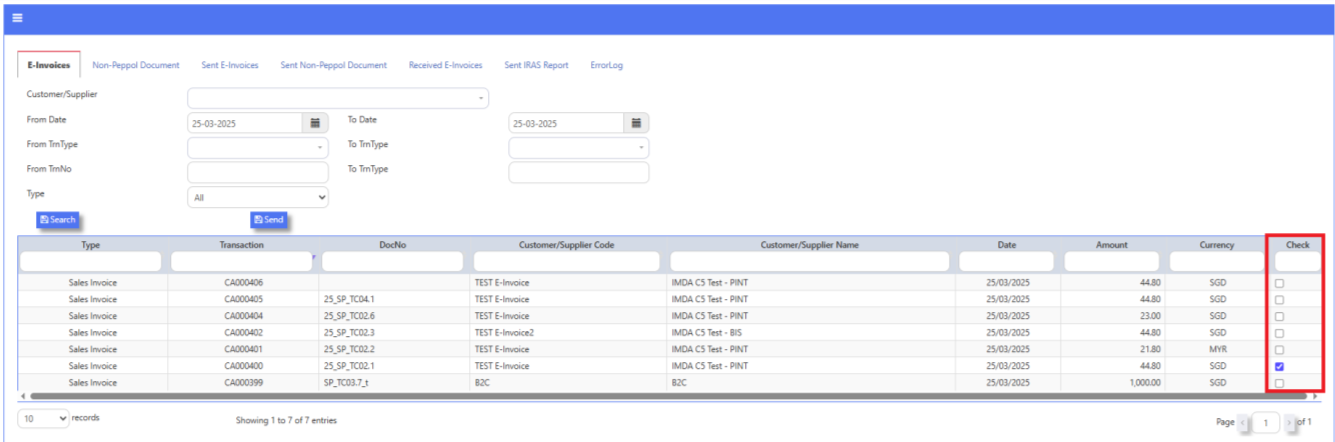
(1) E-Invoices
• Can filter by Customer/Supplier, Date, Transaction Screen, Trn Number, and Trn Type
• User can perform “Sales Invoice” and “Purchase Order” selection and send in batch.
(3) Sent E-Invoices
• Can filter by Customer/Supplier, Date, Transaction Screen, Trn Number, and Trn Type
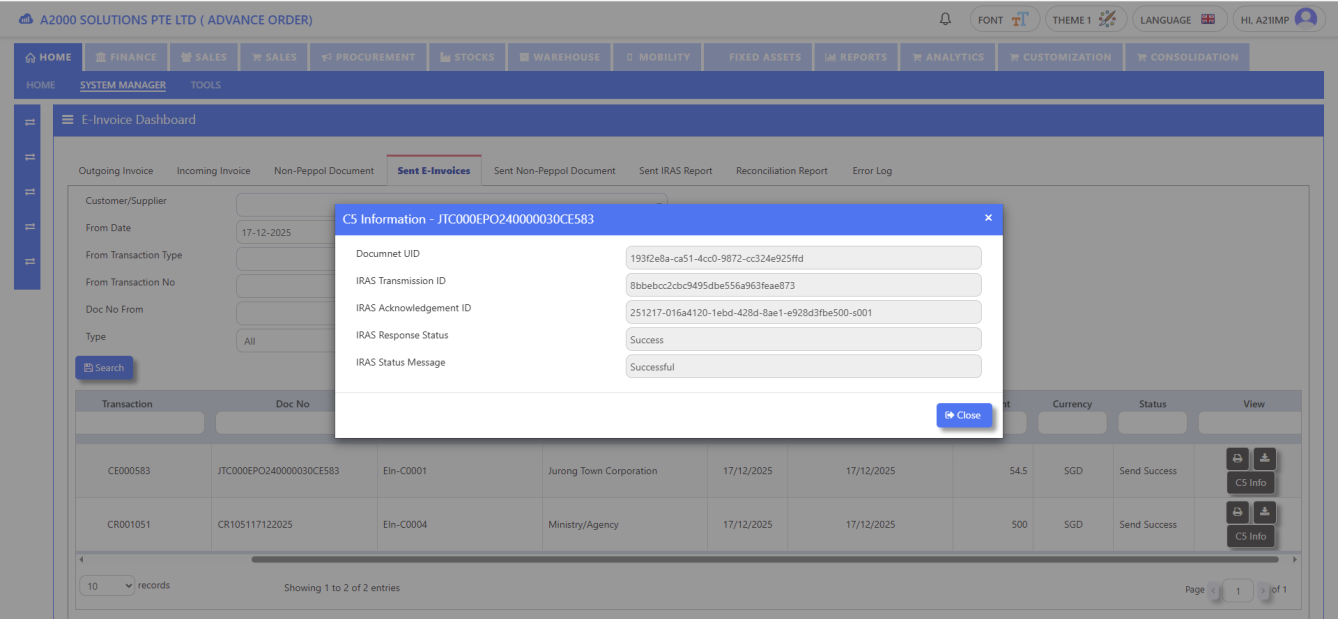
• User can view Send Status, Print/Preview Invoice, Transaction Reference No.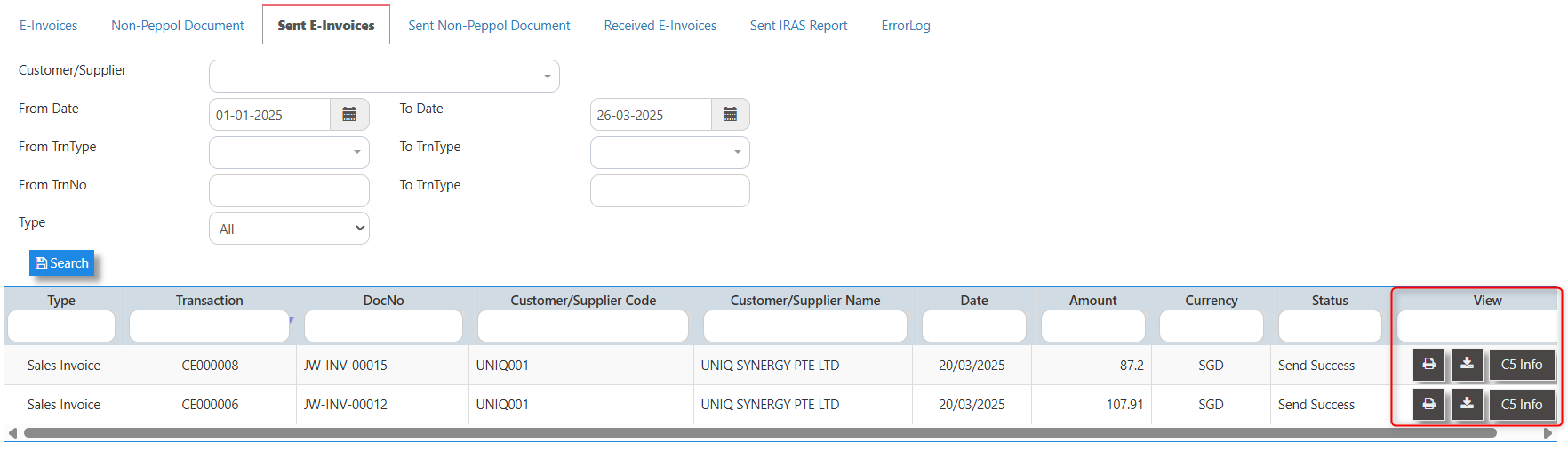
Download XML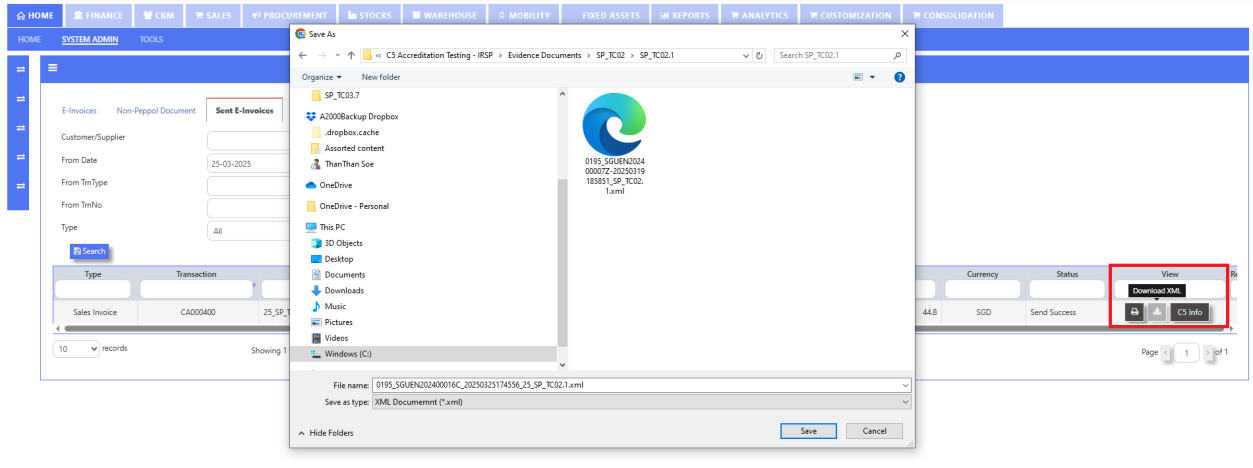
C5 Info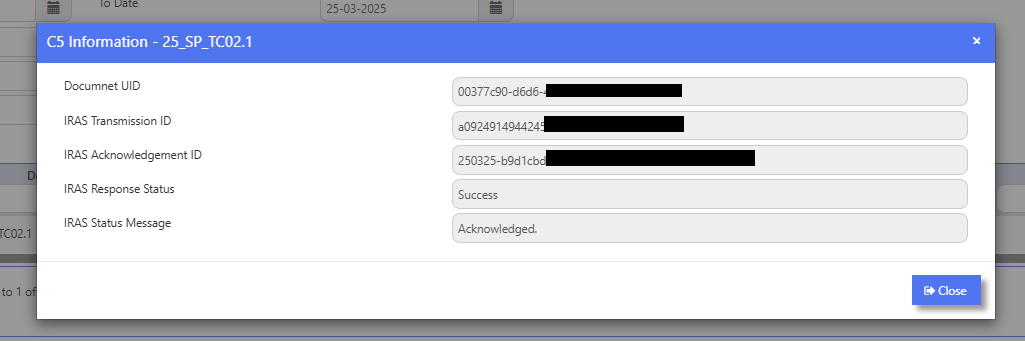
(4) Sent Non-Peppol Document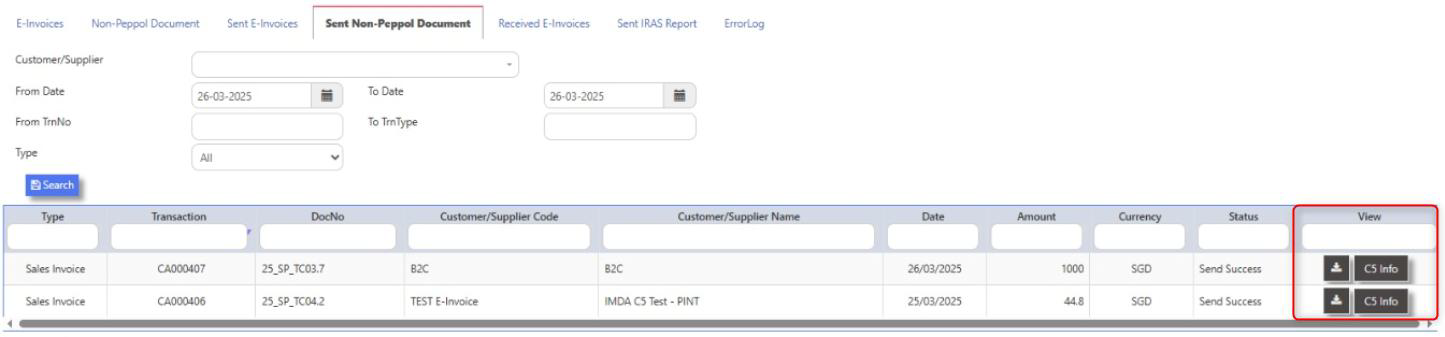
C5 Info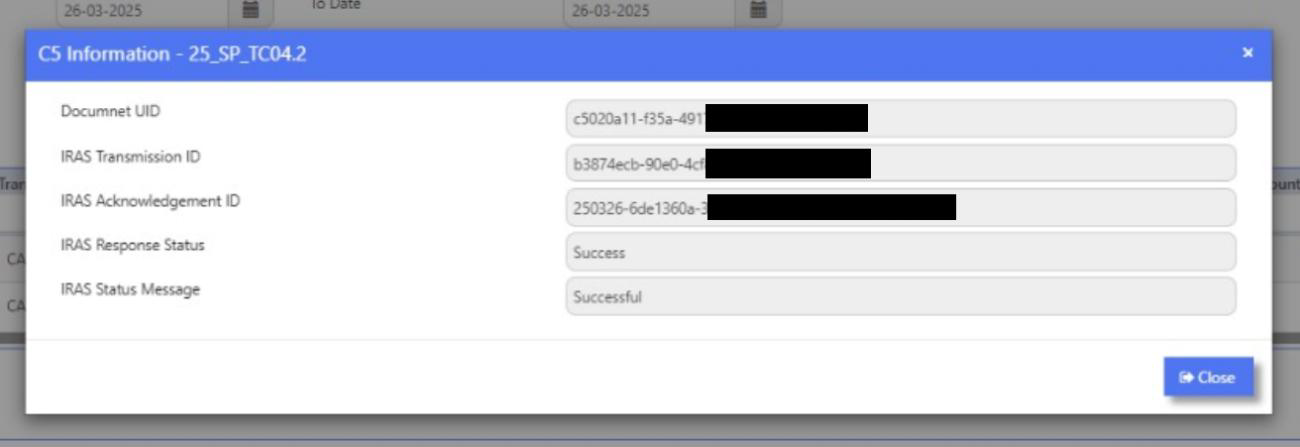
(5) Received E-Invoices
• Can filter by Sender/Supplier, Date, and Transaction Type
• User can view Sender and Invoice information, Status, Print/Preview Invoice, Transaction Reference No.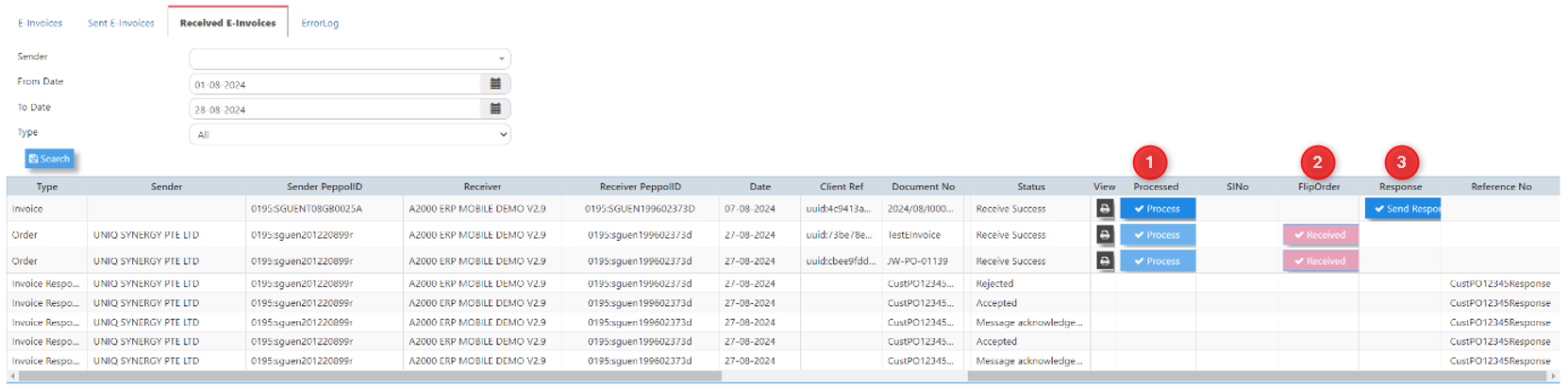
• (1) Processed Button – Process to Map Product and Create as Purchase Credit Invoice, after created, it will show the SI No. on the dashboard.
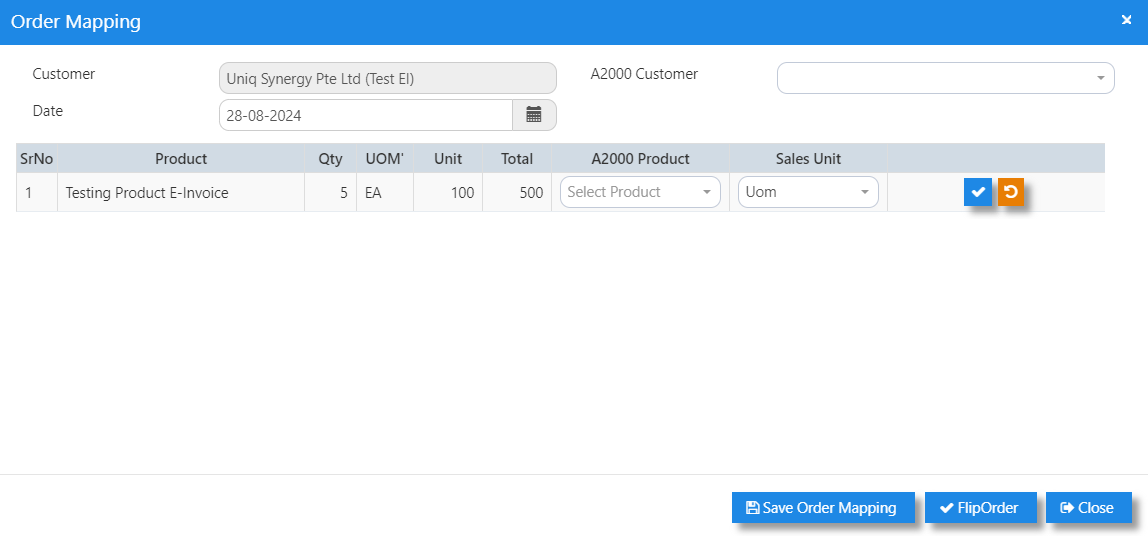
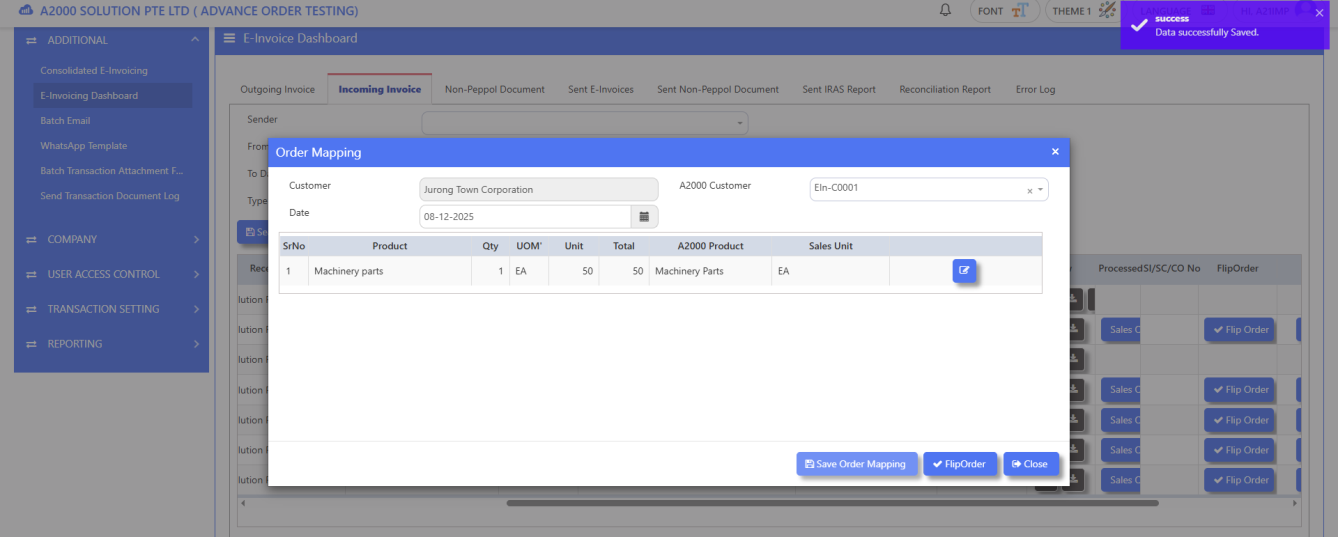
• (2) Flip Order Button – When customer send a Purchase Order to you, you can click Flip Order to generates both Sales Order [CO] and Invoice on Order [CE]. The generated Invoice [CE] will send to the customer at the same time.
• Product Mapping - While accepting Supplier Invoice or Customer Purchase Order, user can perform Product Mapping by selecting Customer/Supplier. User can save the Product Order Mapping and do not require to perform the mapping for the same product in future order.
• (3) Response Button – User can send Response to the Sender with the provided options.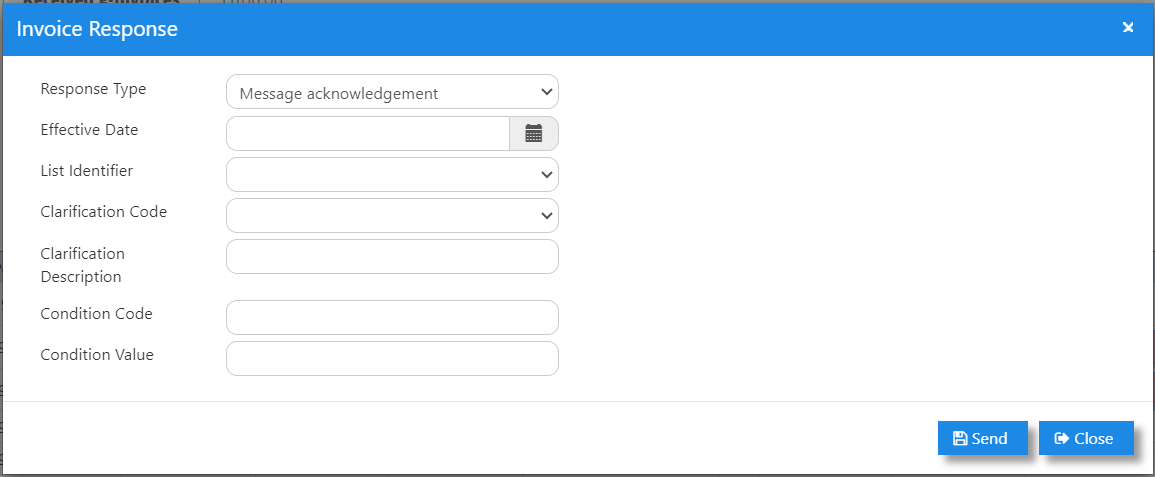
(8) Error Log
• If Invoice or Order sending failed, you can check the validation issue or error in this tab.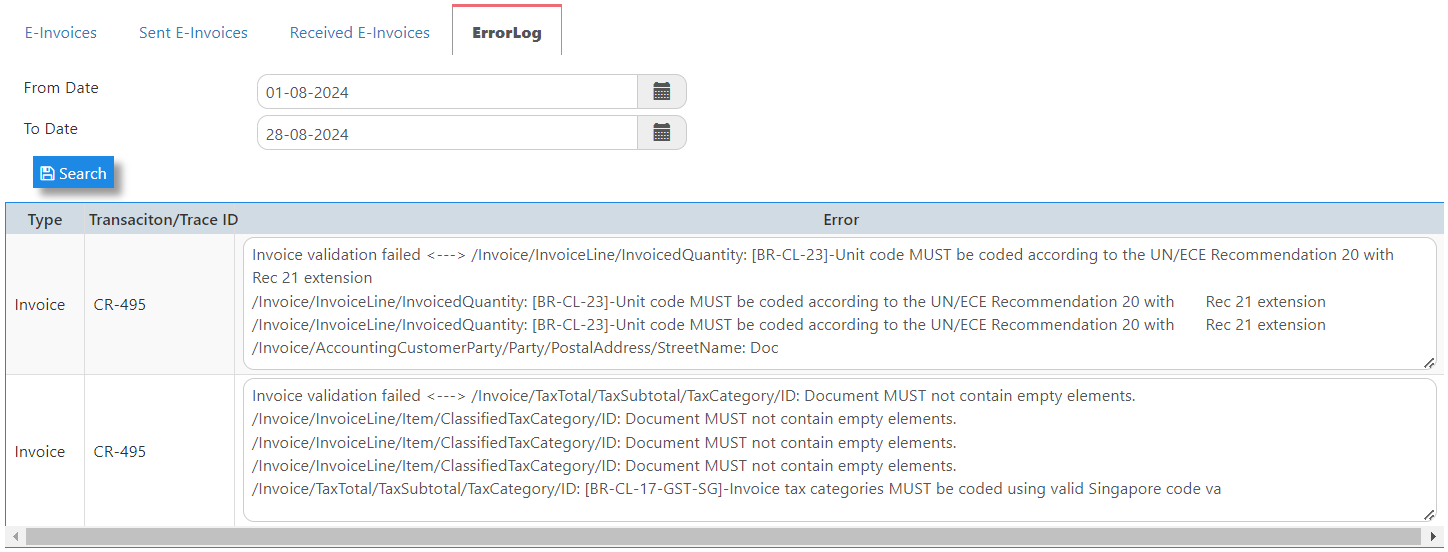
ADVANCED ORDERING
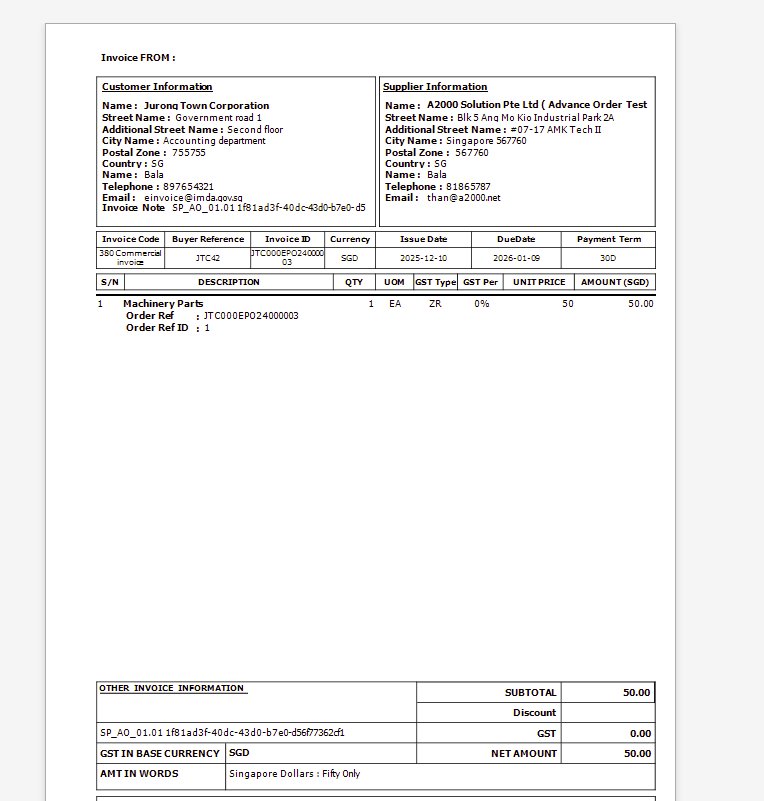
SP_AO_01 Full Order Flipping
SP_AO_01.01 Order ID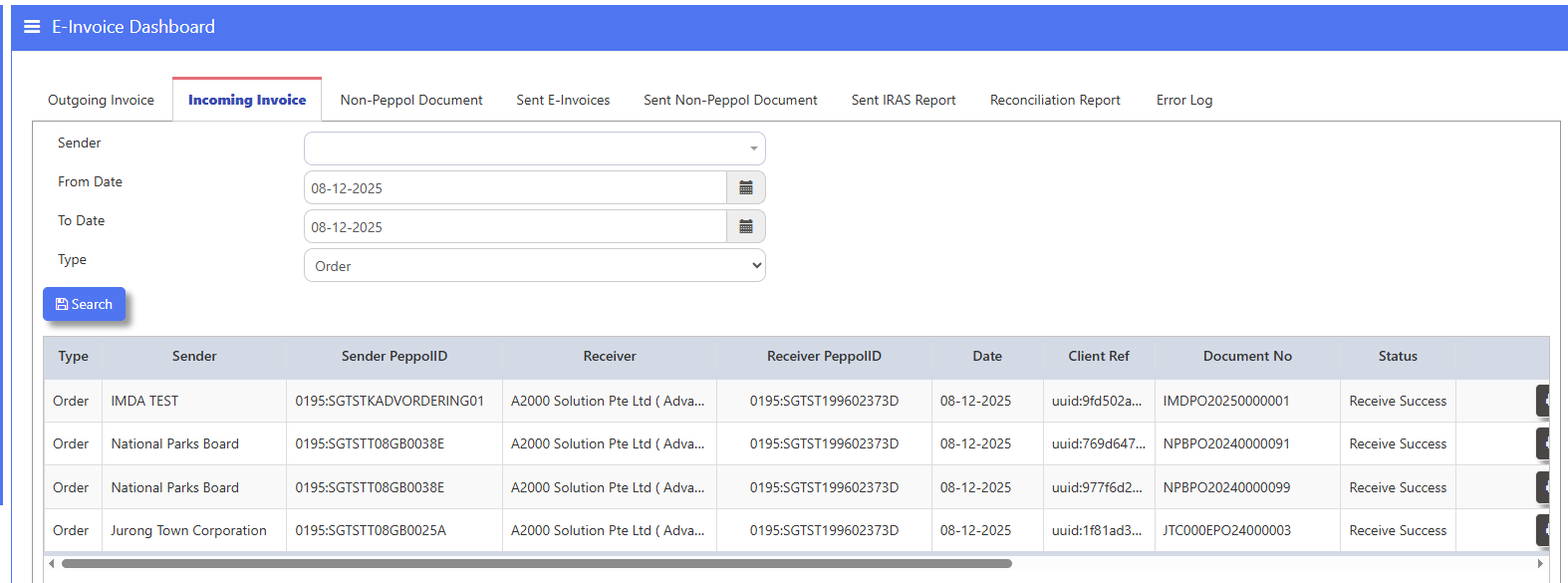
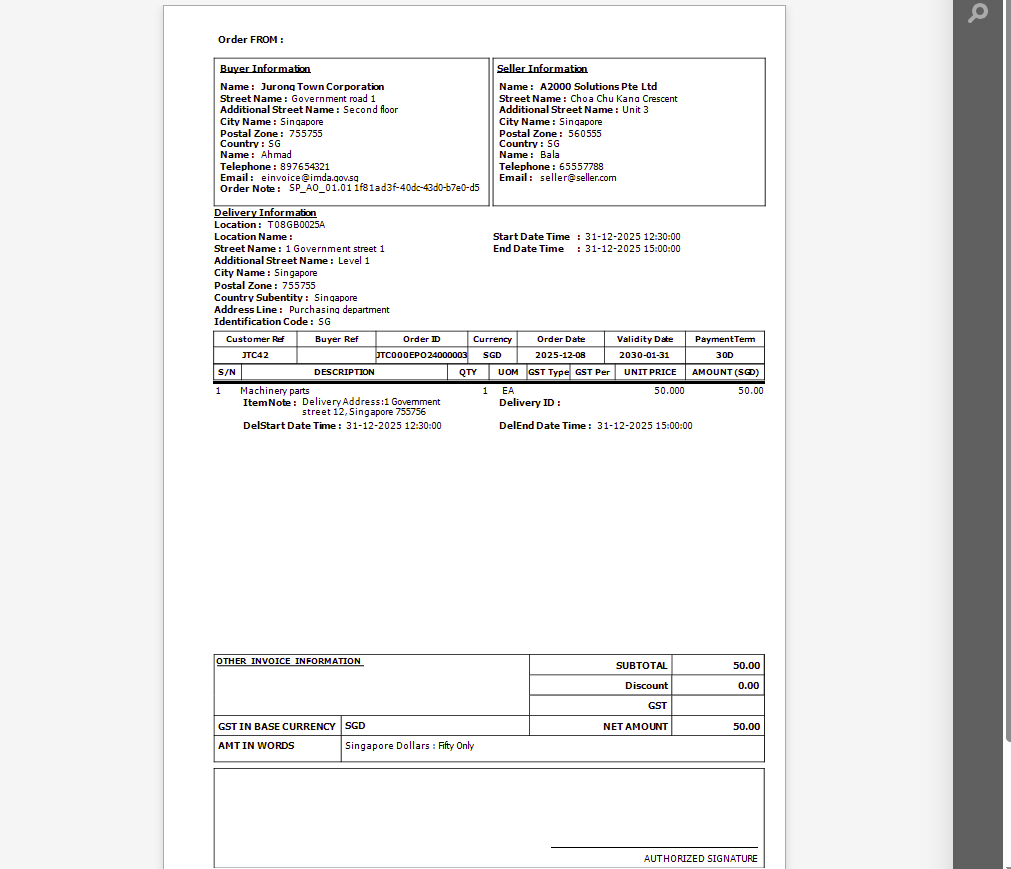
SP_AO_01.02 Order Balance ID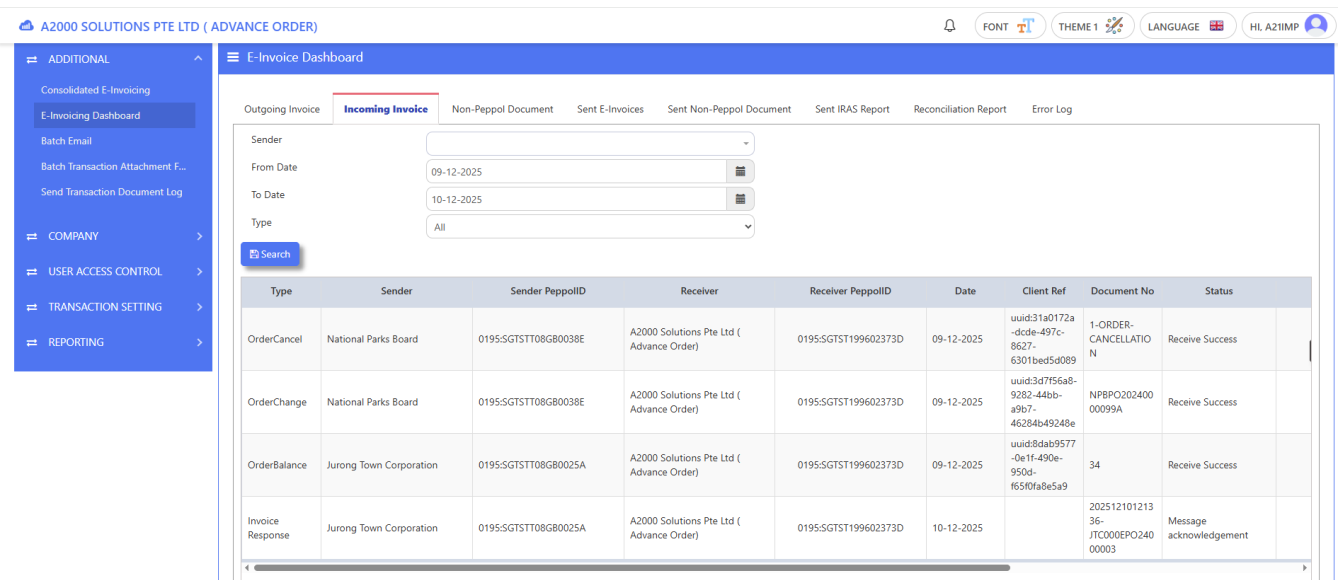
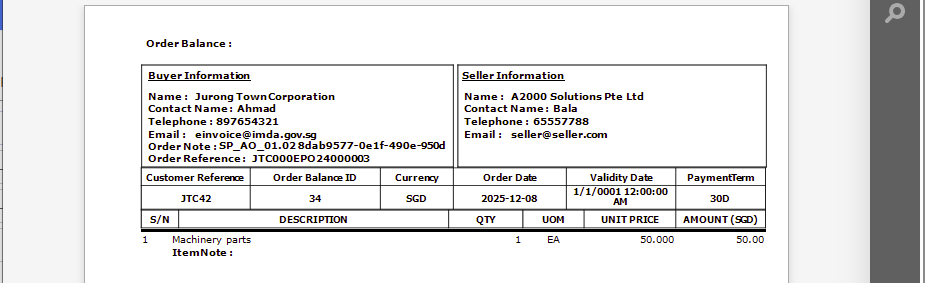
SP_AO_01.03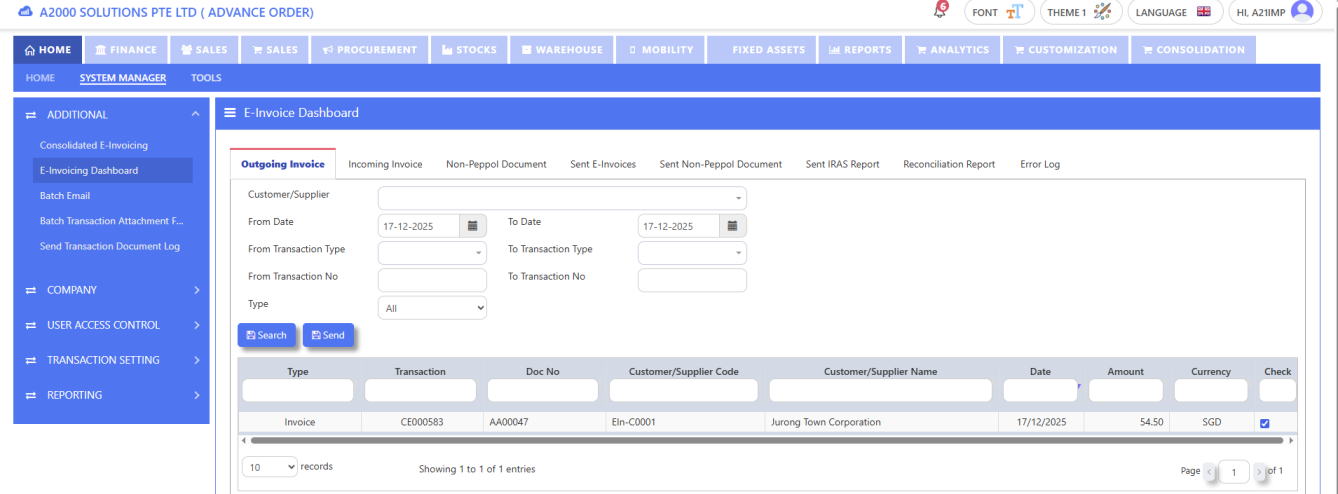
SP_AO_01.04 Invoice ID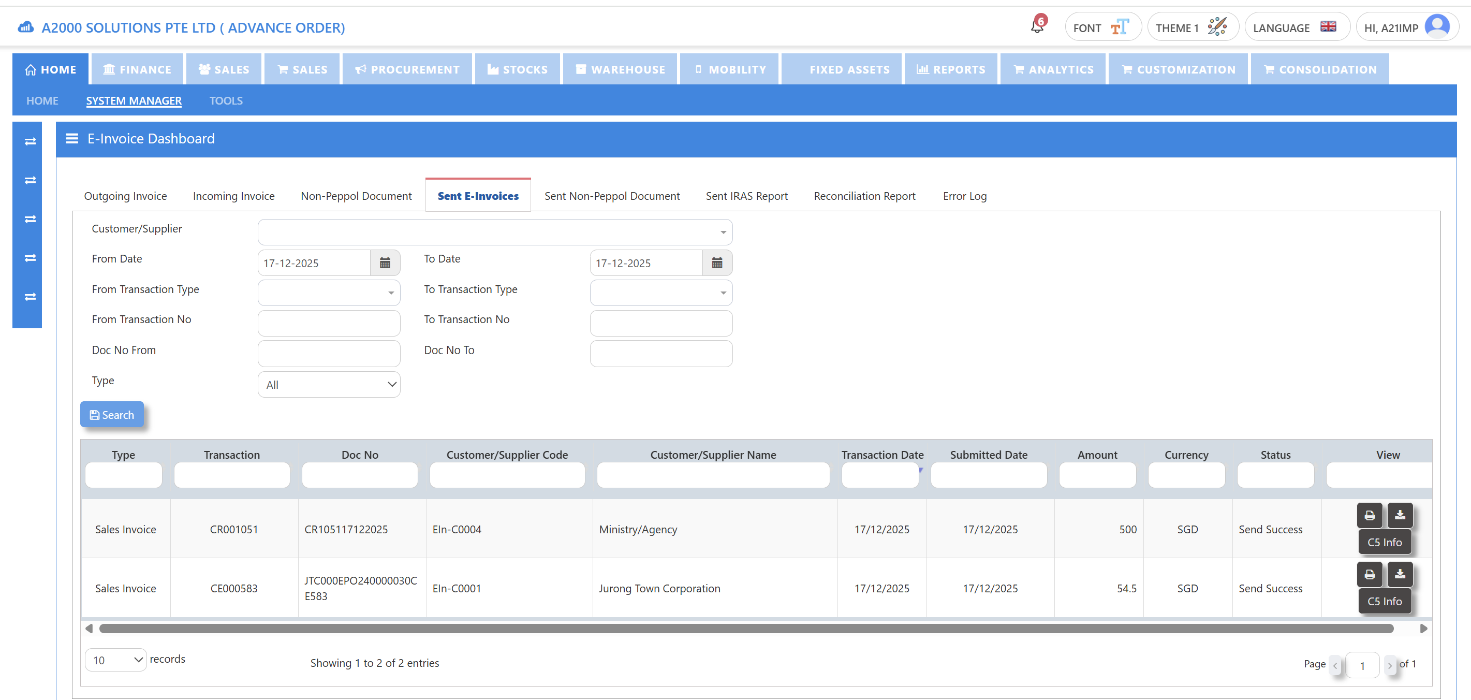
SP_AO_01.05 Invoice Response ID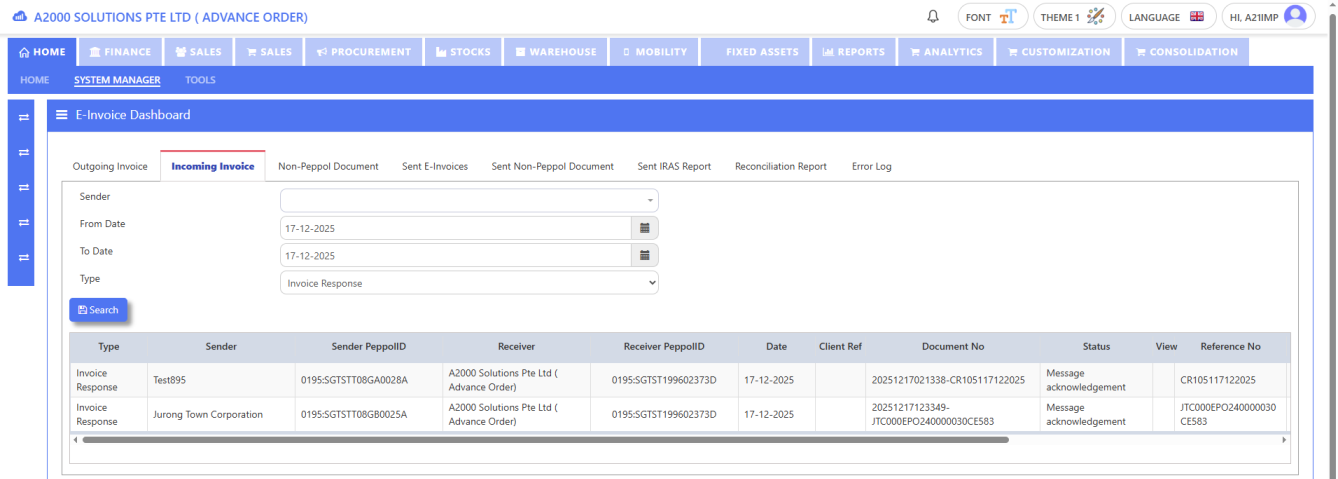
SP_AO_01.06 Invoice Response ID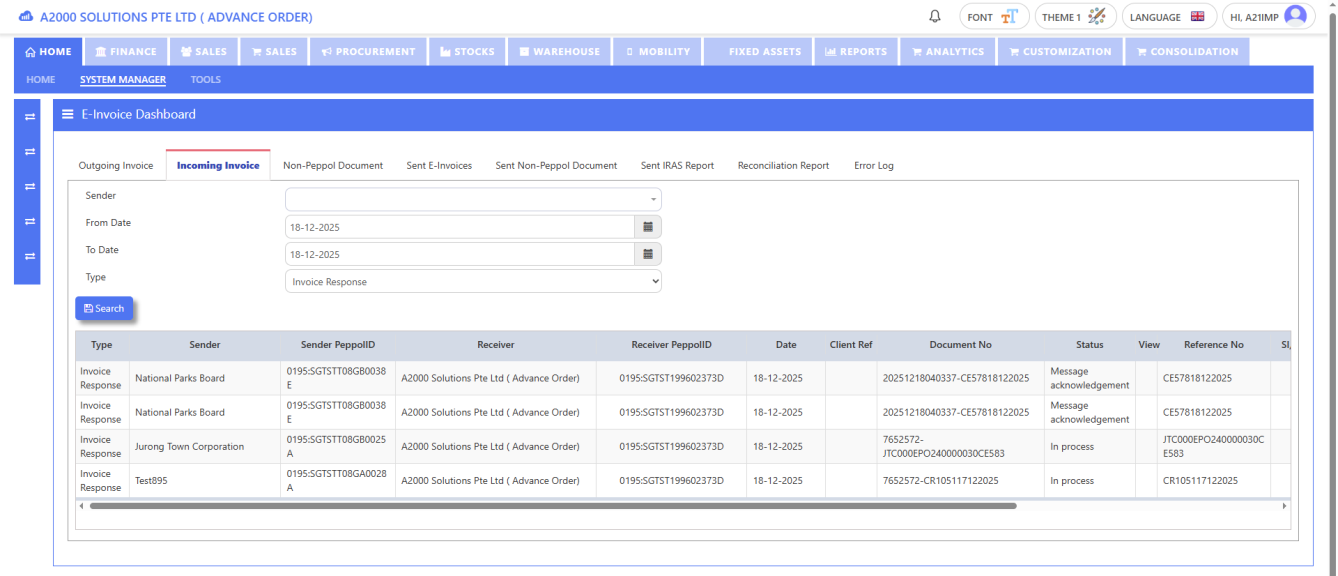
SP_AO_02 Order Variation
SP_AO_02.01 Order ID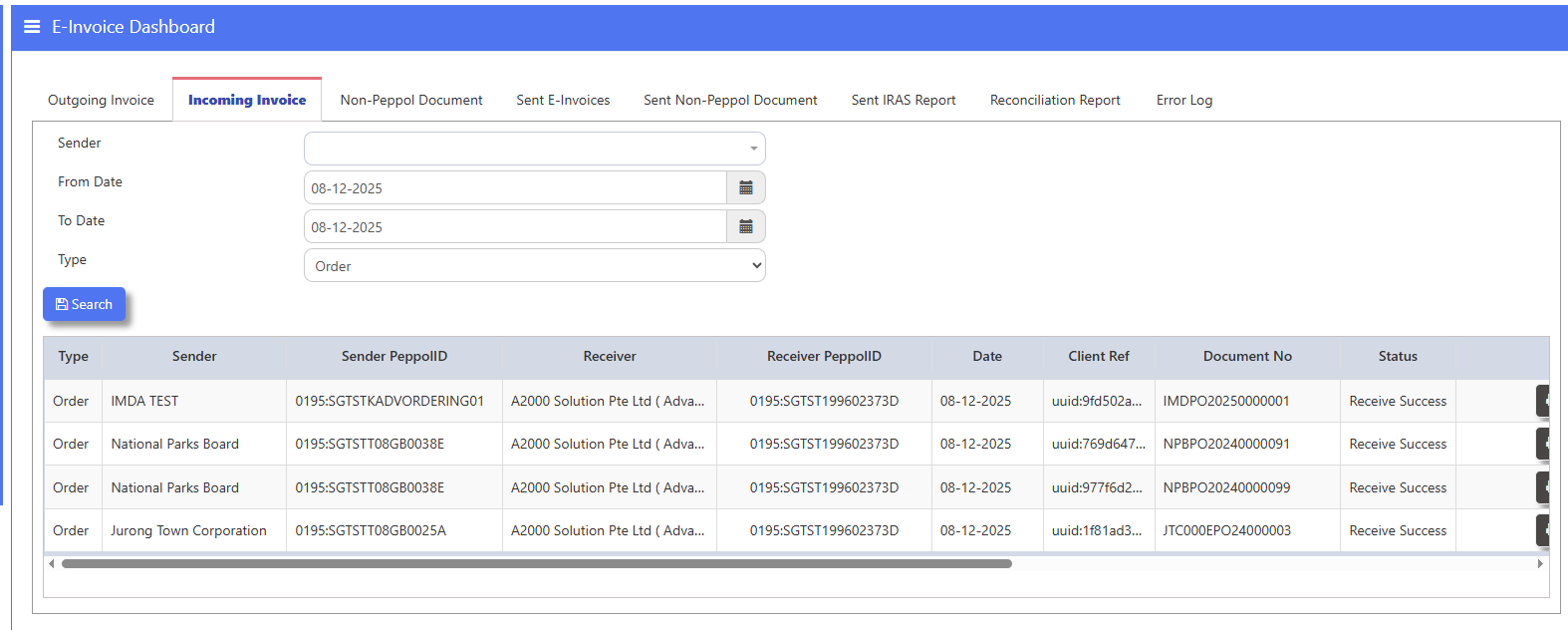
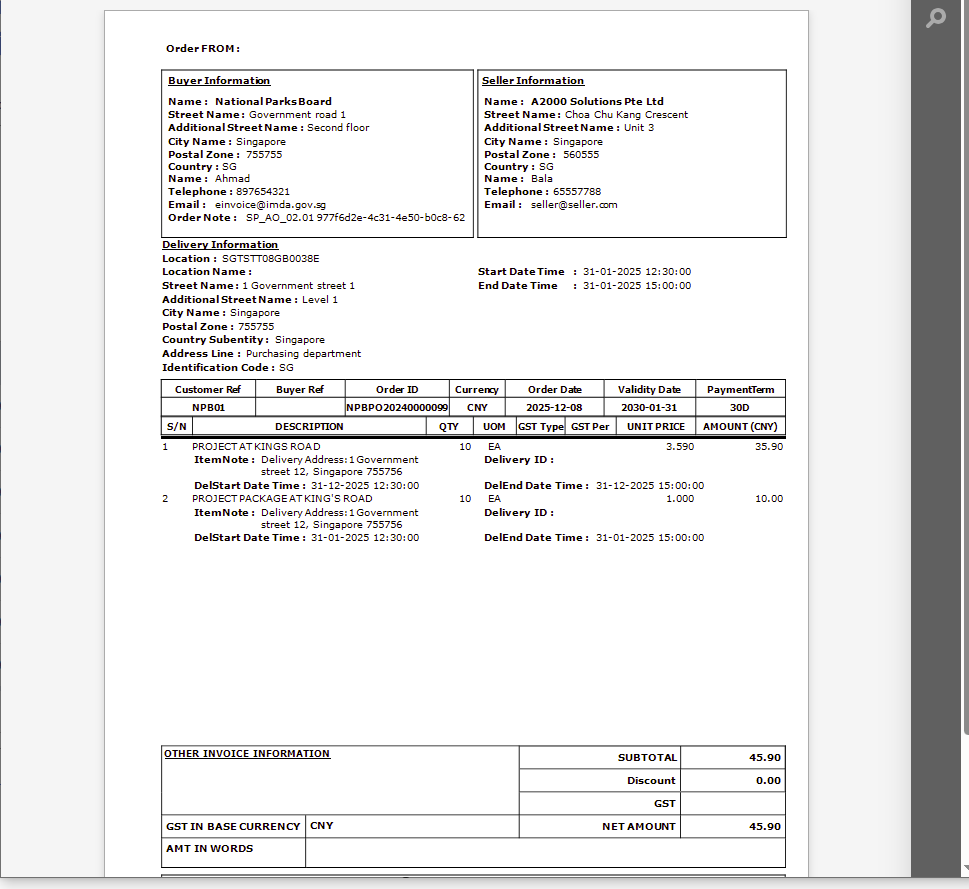
SP_AO_02.02 Order Variation ID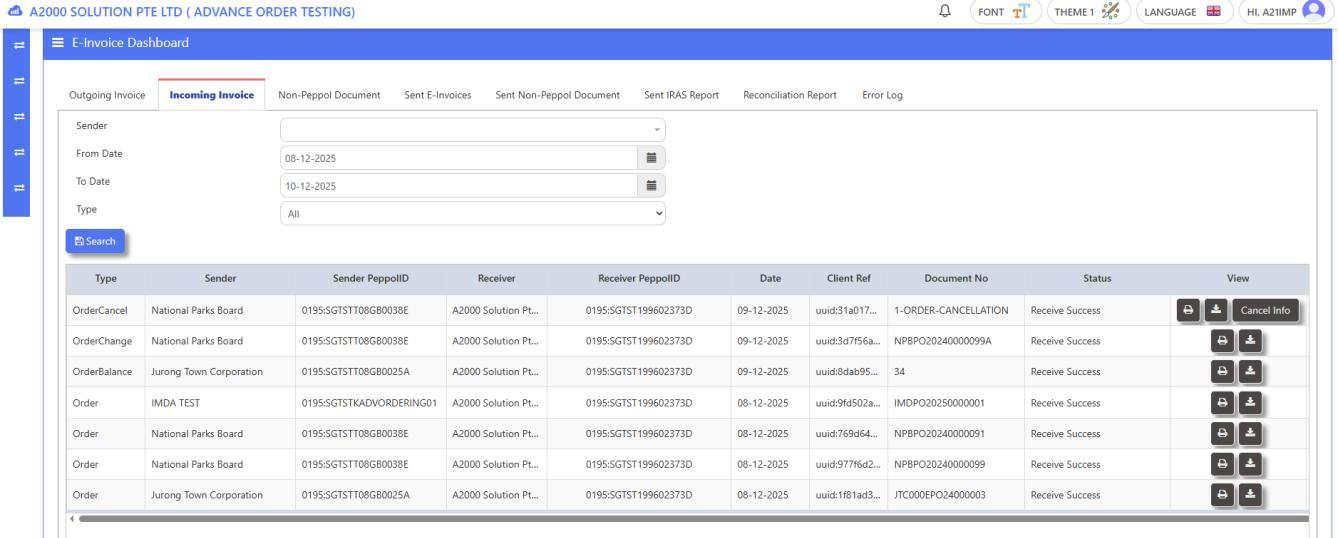
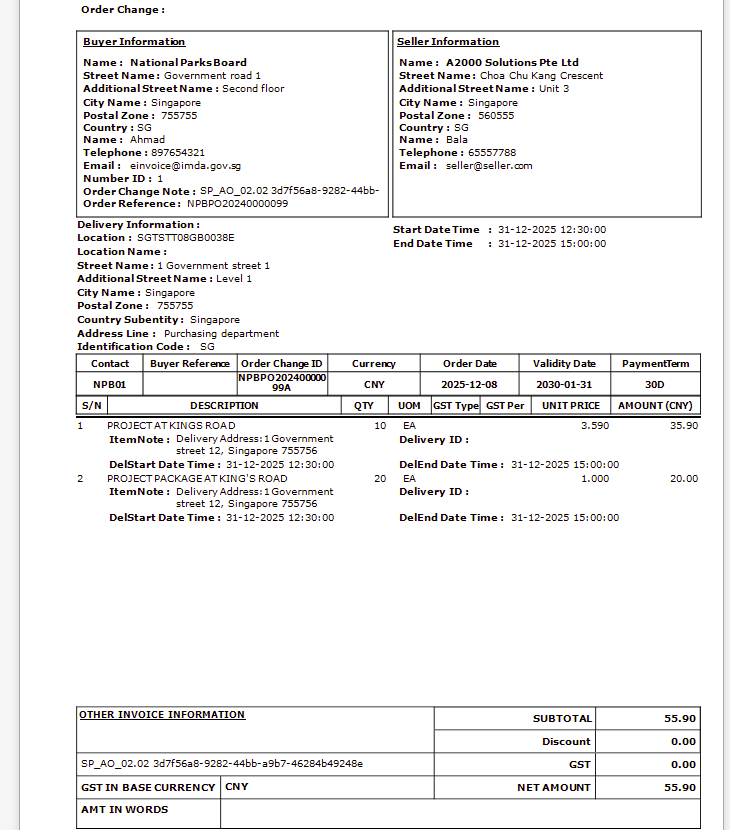
SP_AO_02.03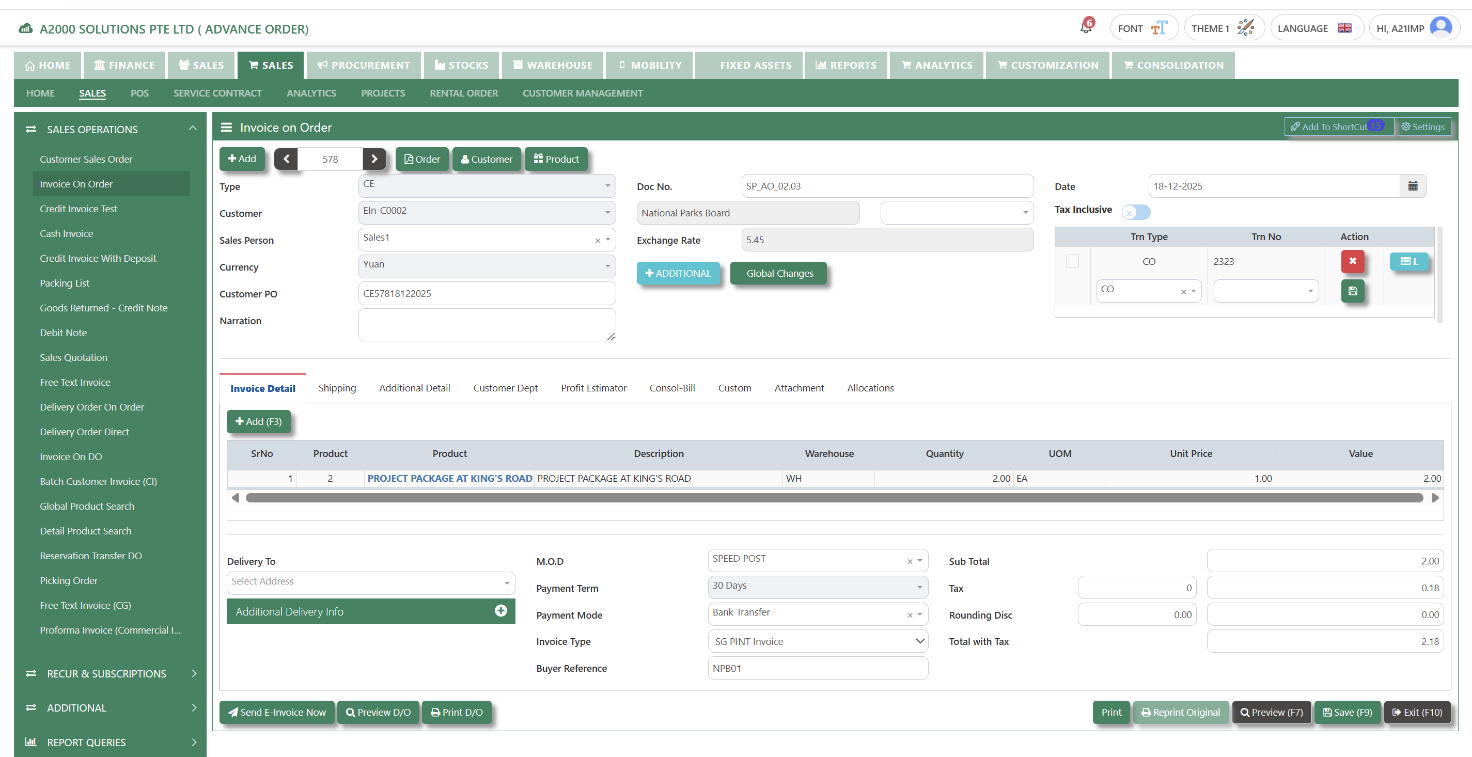
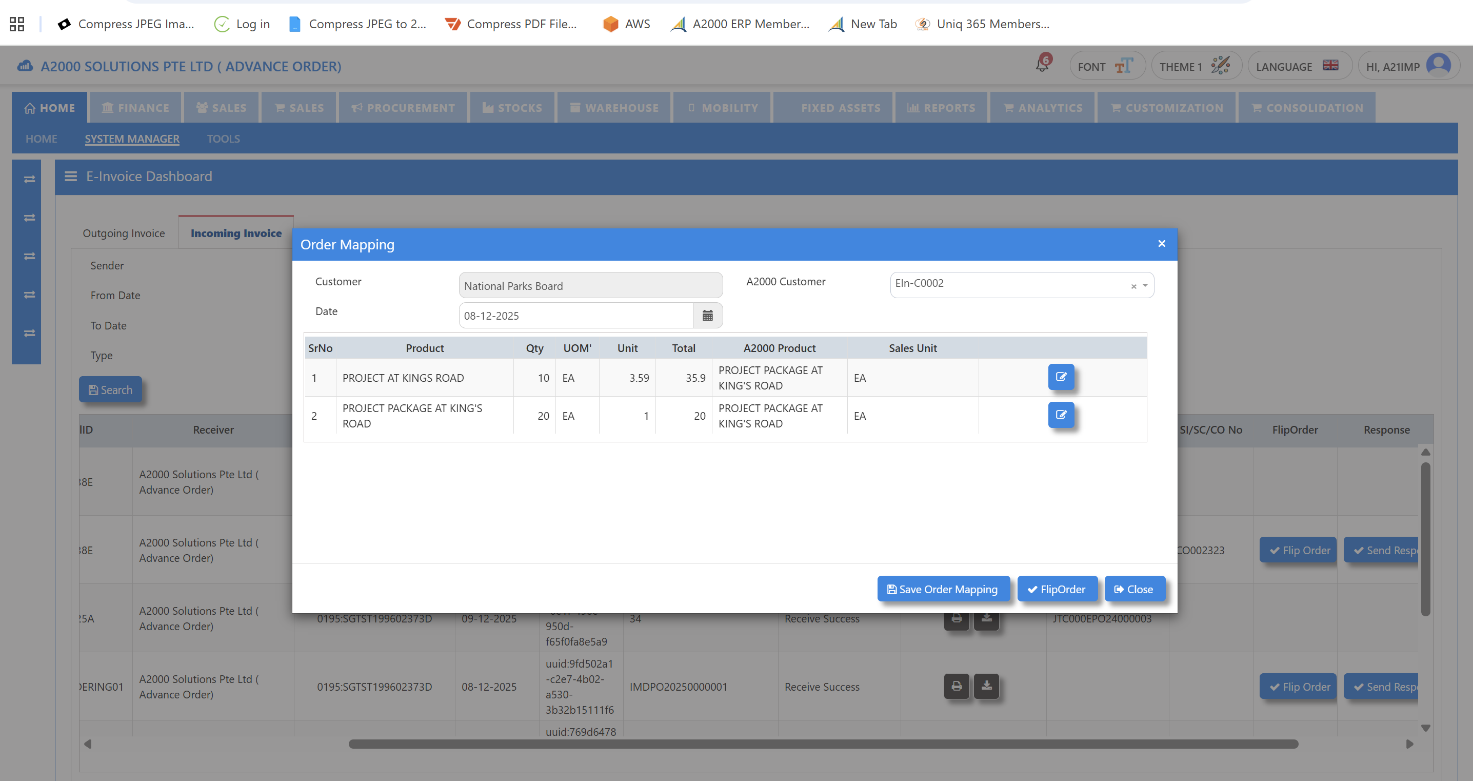
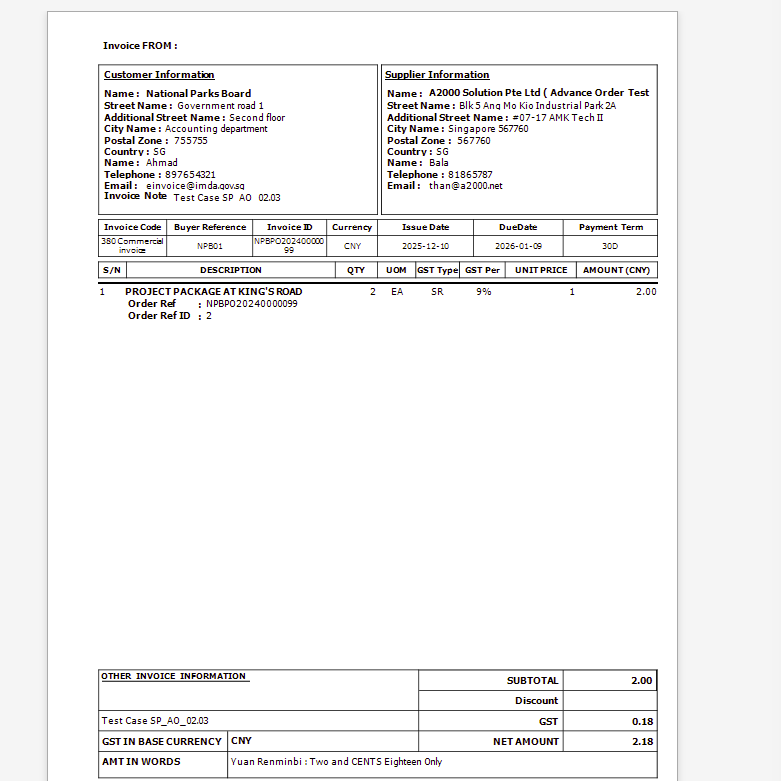
SP_AO_02.04 Invoice ID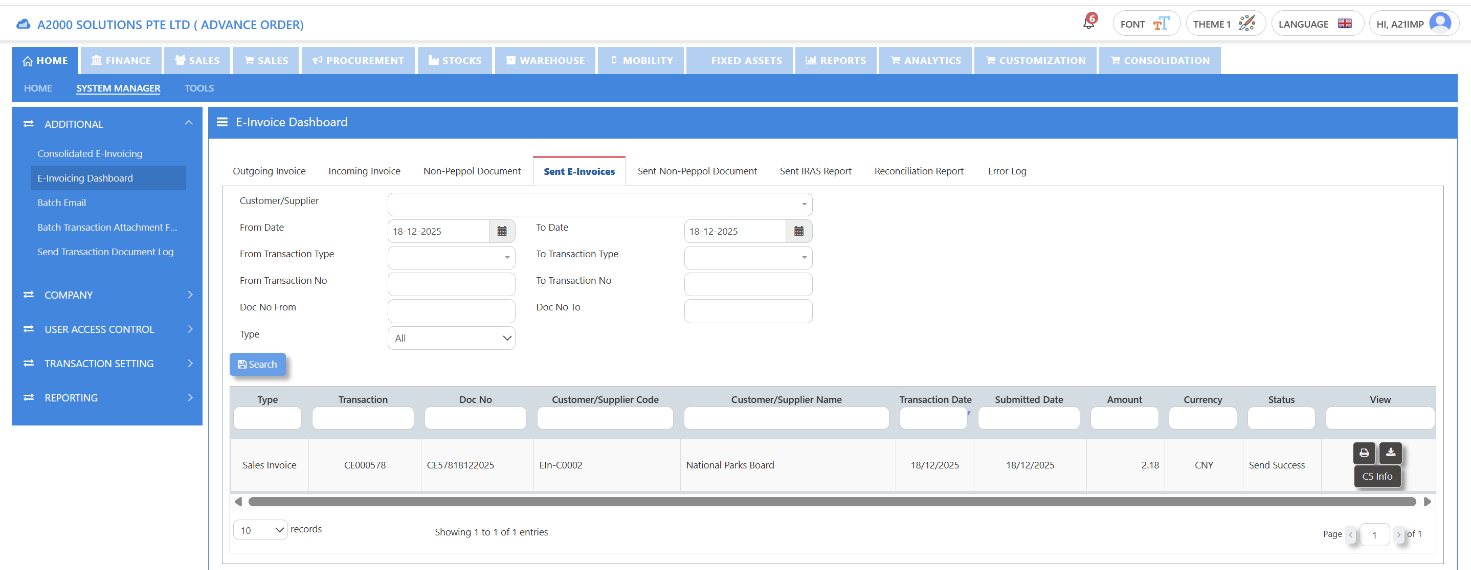
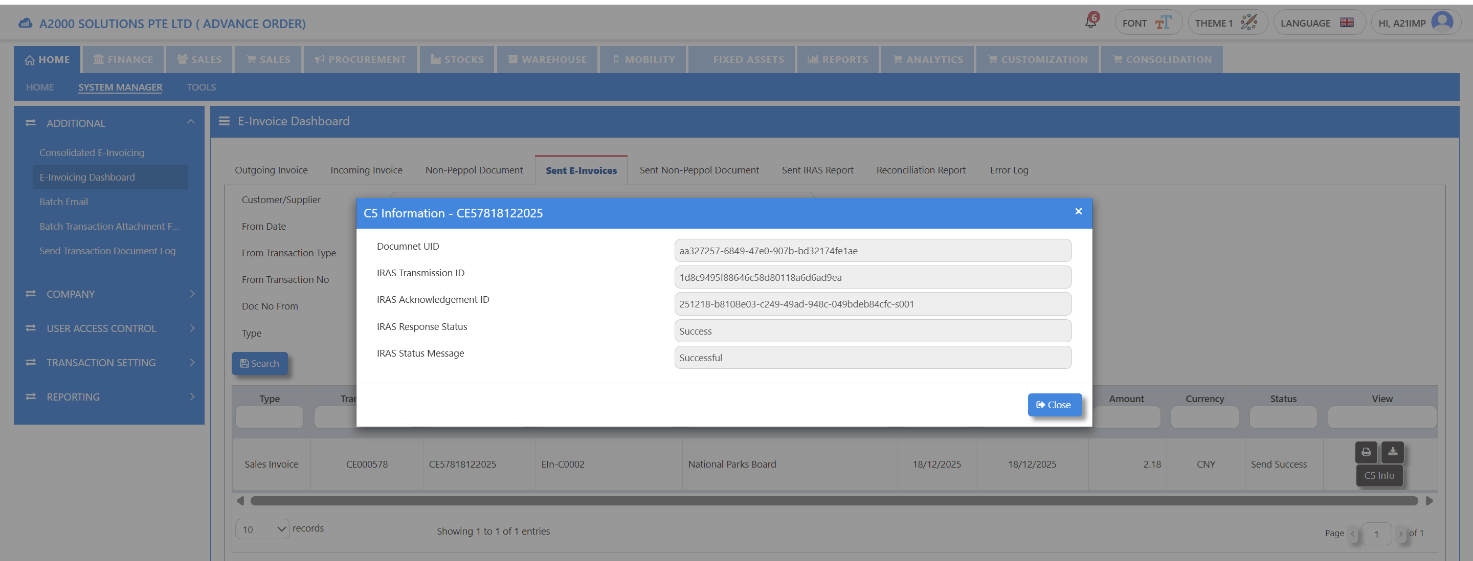
SP_AO_02.05 Invoice Response ID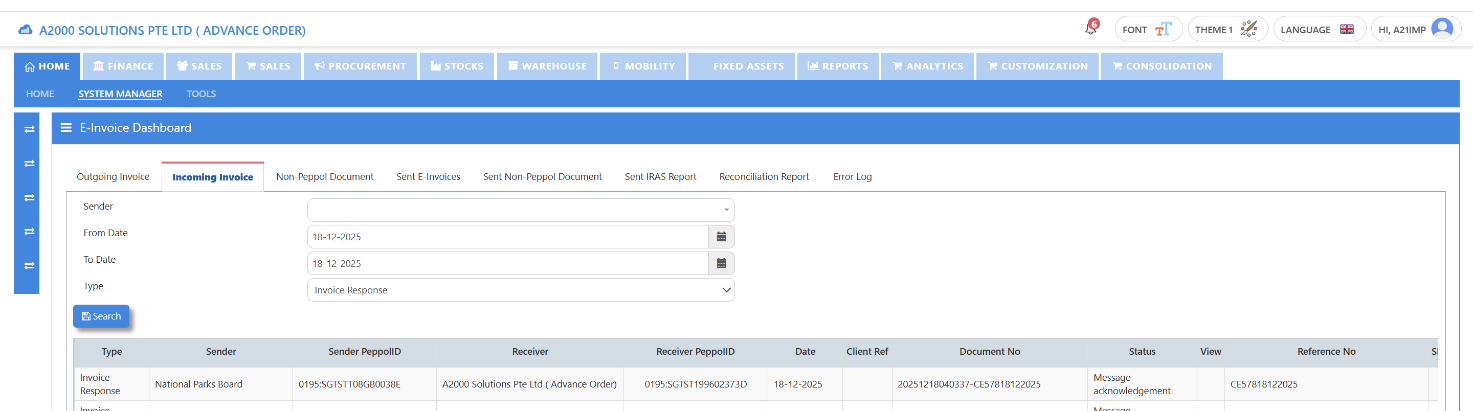
SP_AO_02.06 Invoice Response ID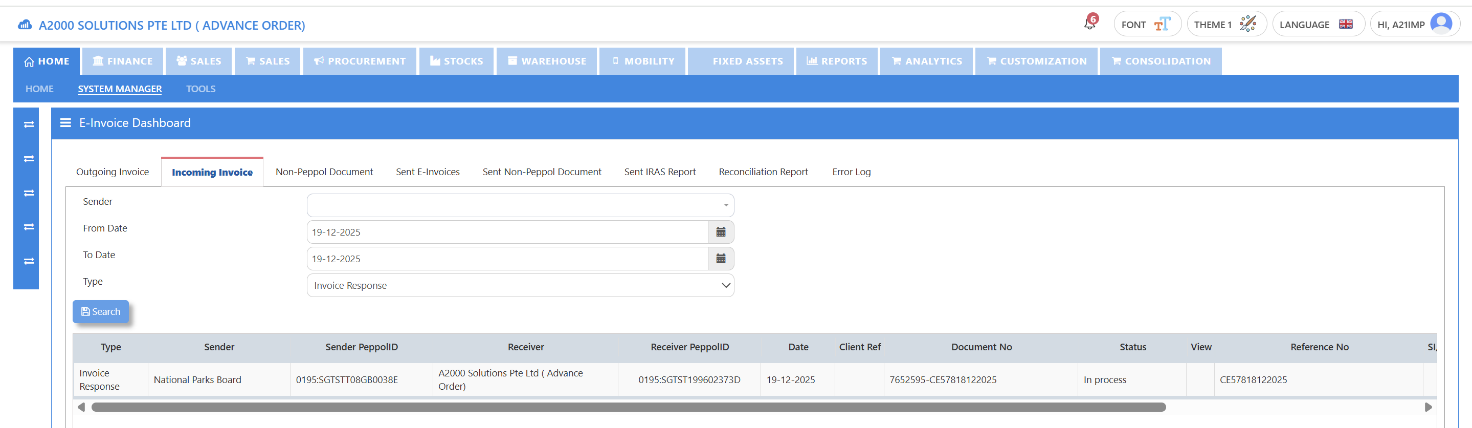
SP_AO_03 Order Cancellation
SP_AO_03.01 Order ID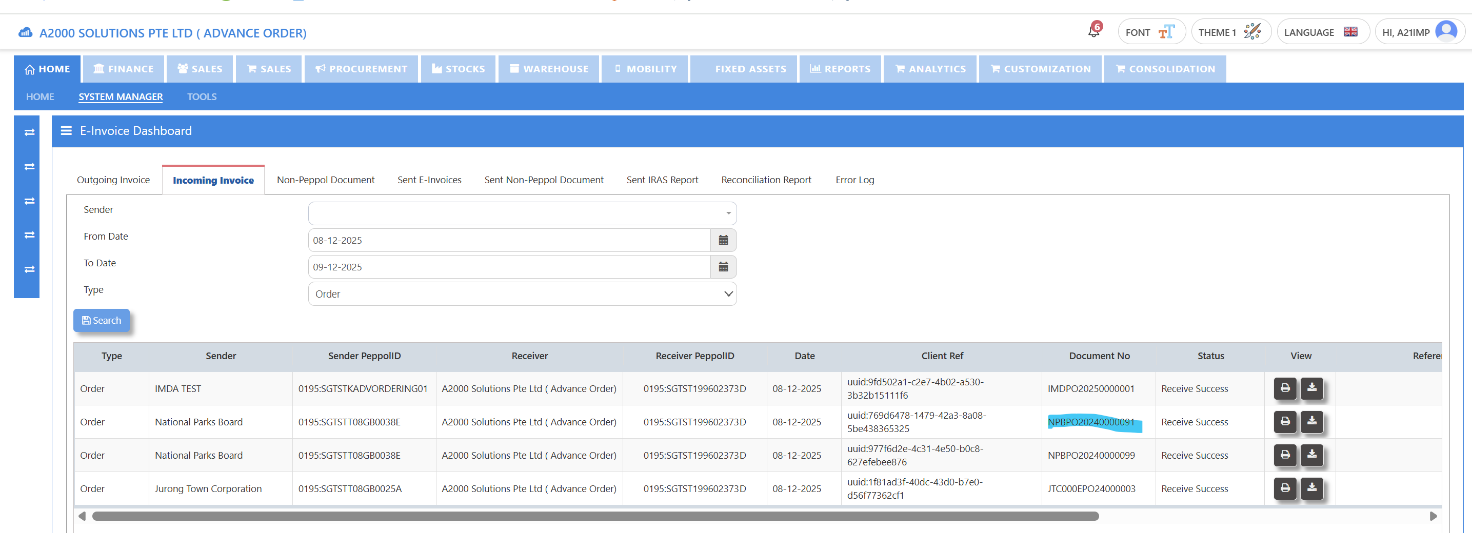
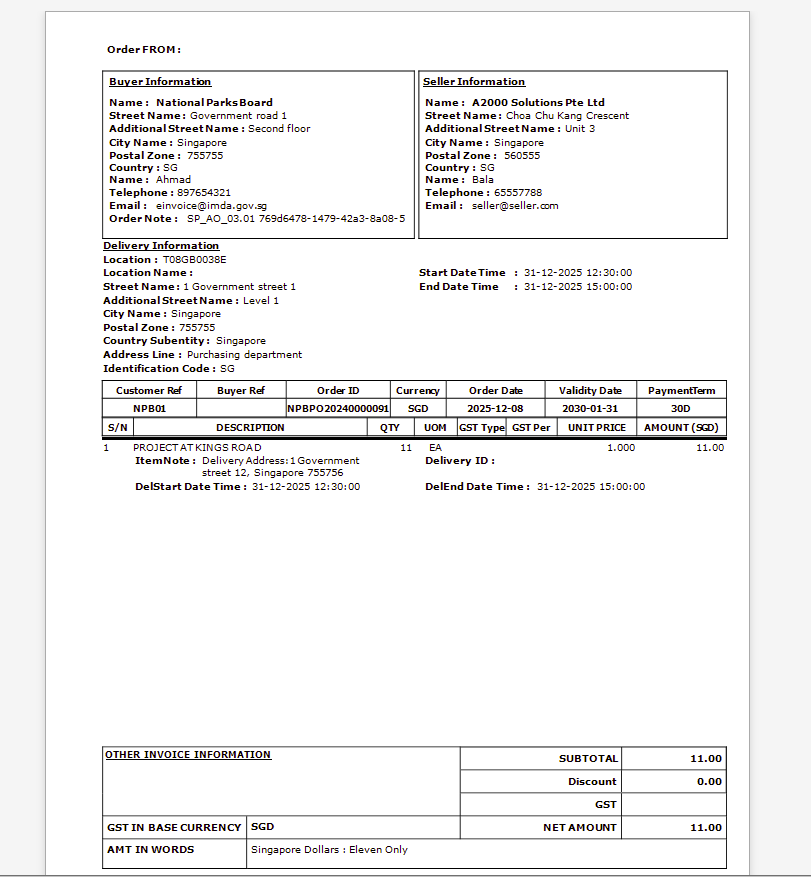
SP_AO_03.02 Order Cancellation ID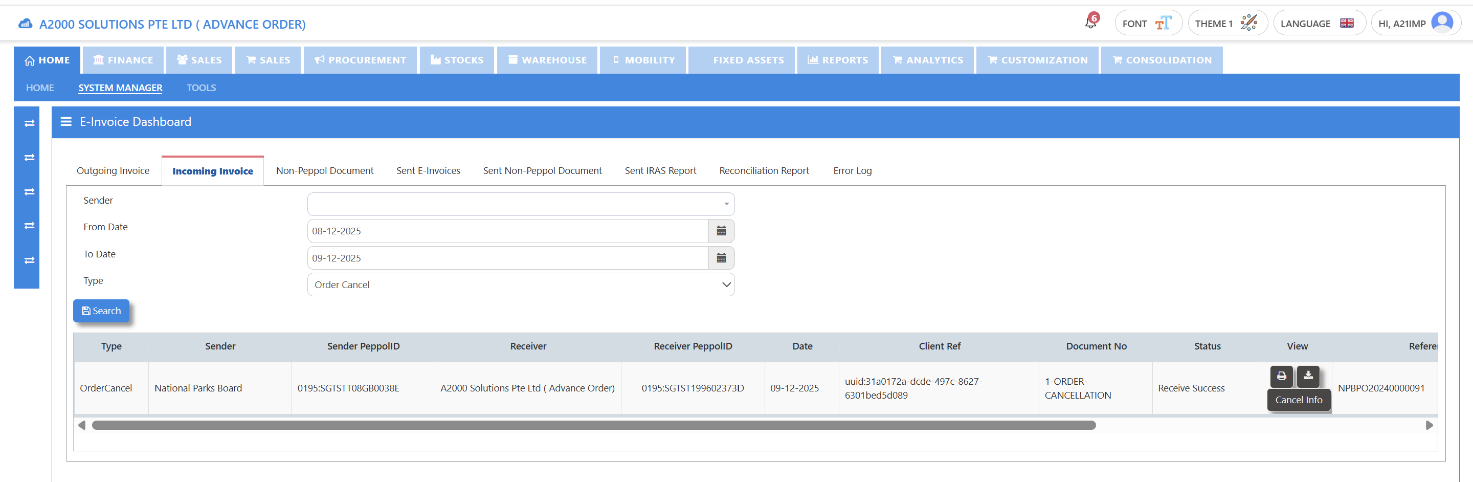
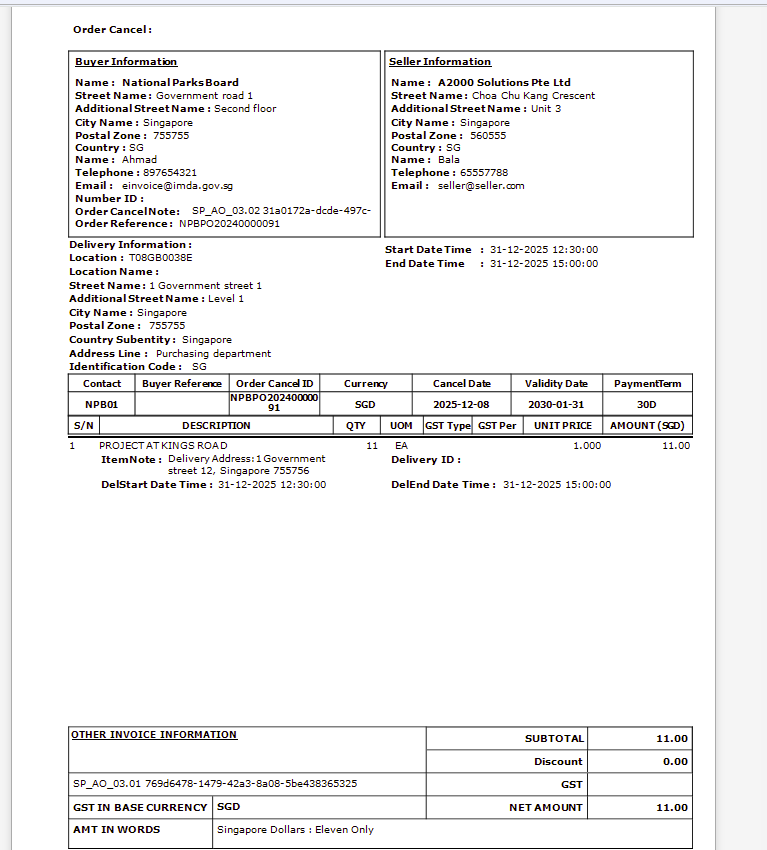
SP_AO_03.03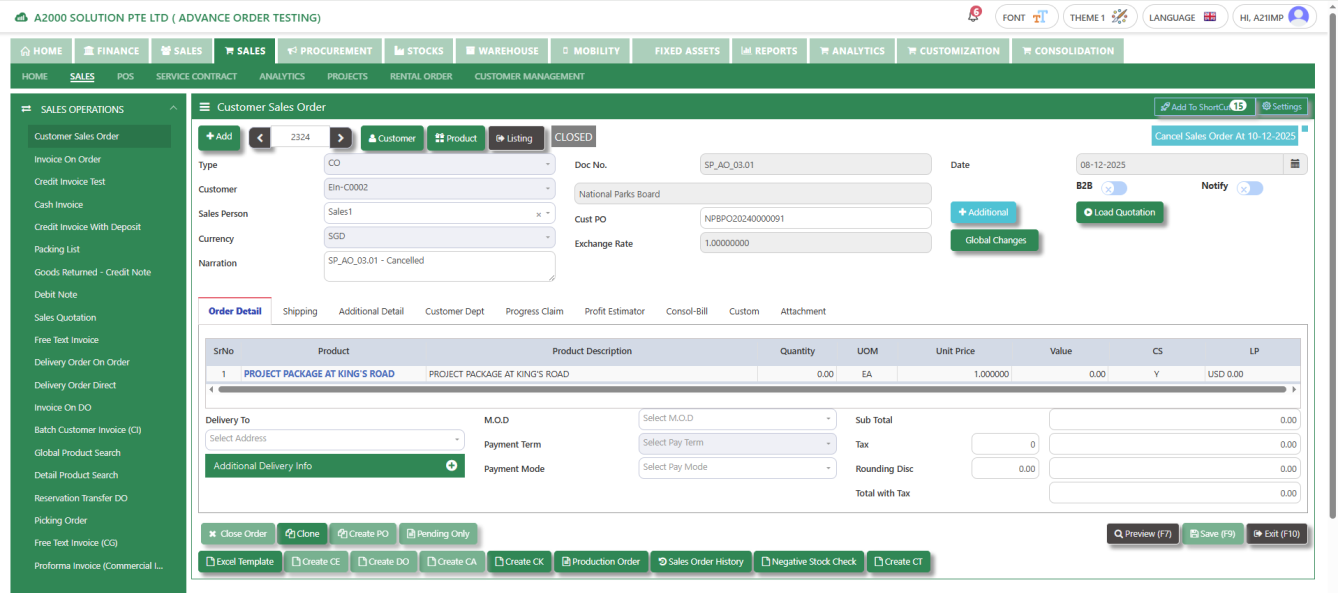
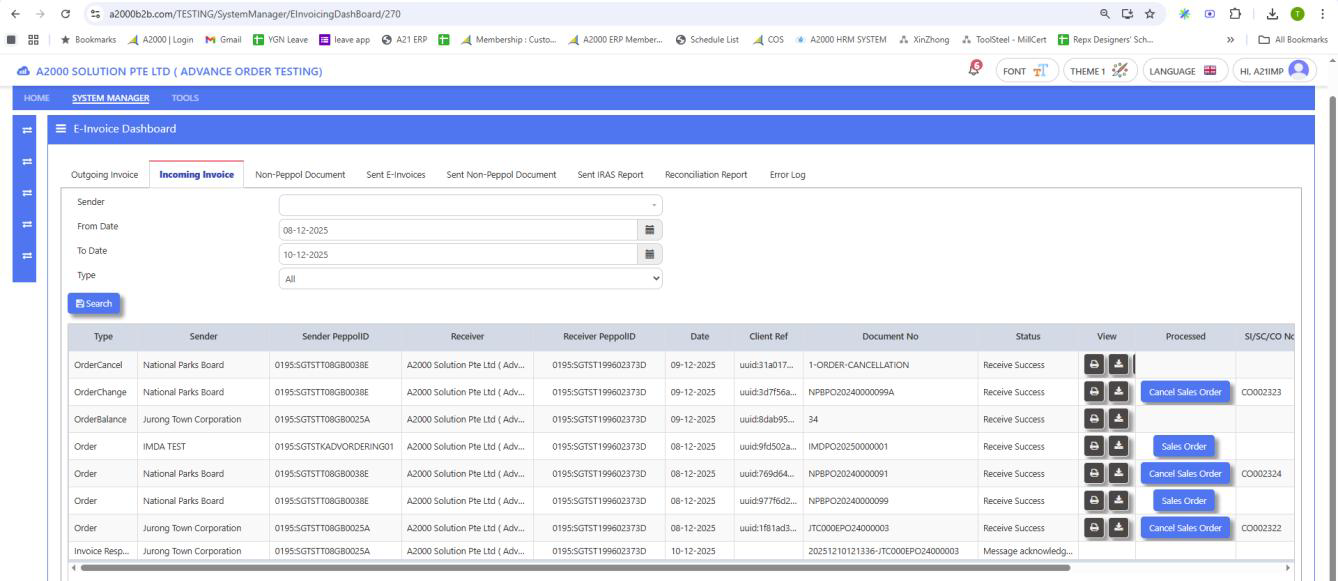
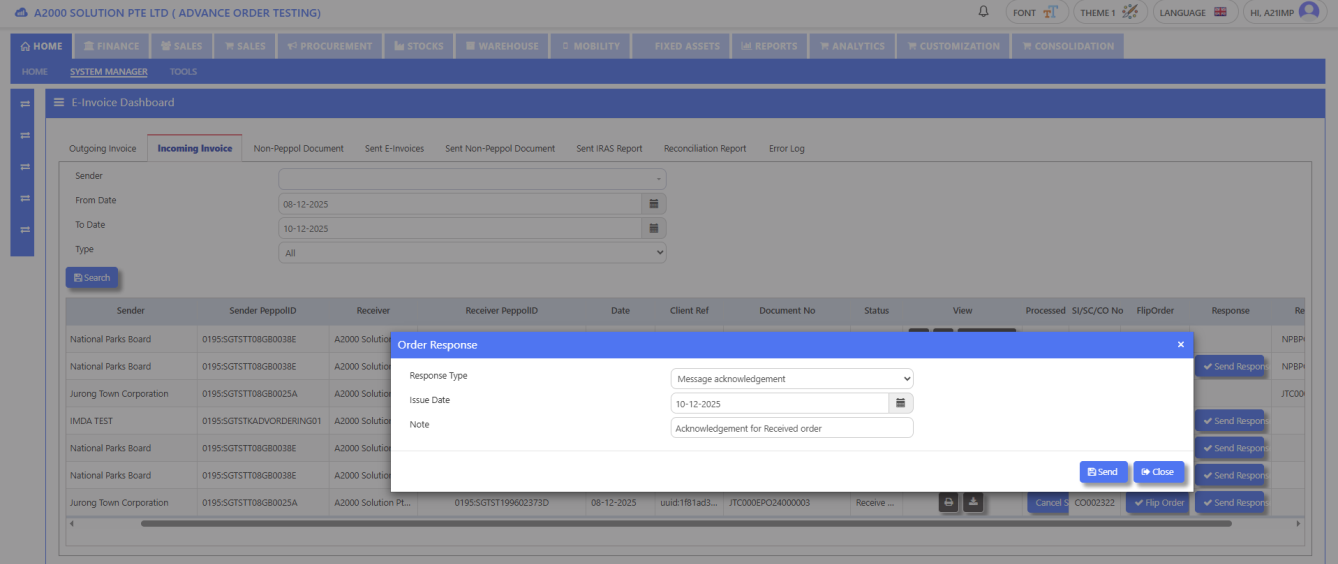
SP_AO_04 Order Response
SP_AO_04.01 Order ID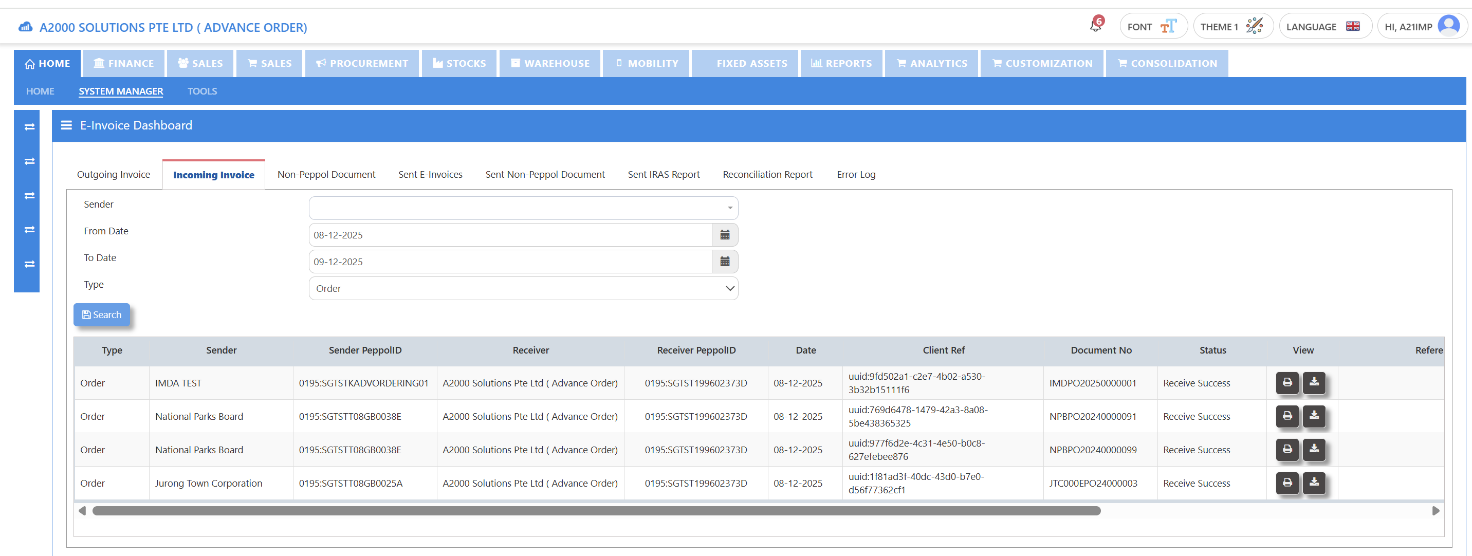
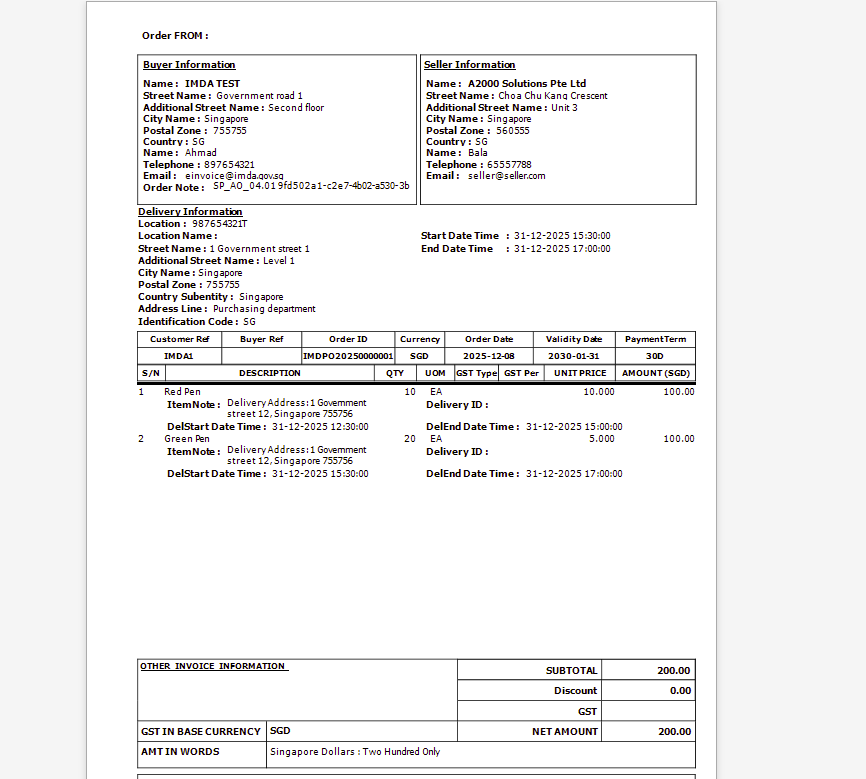
SP_AO_04.02 Order Response ID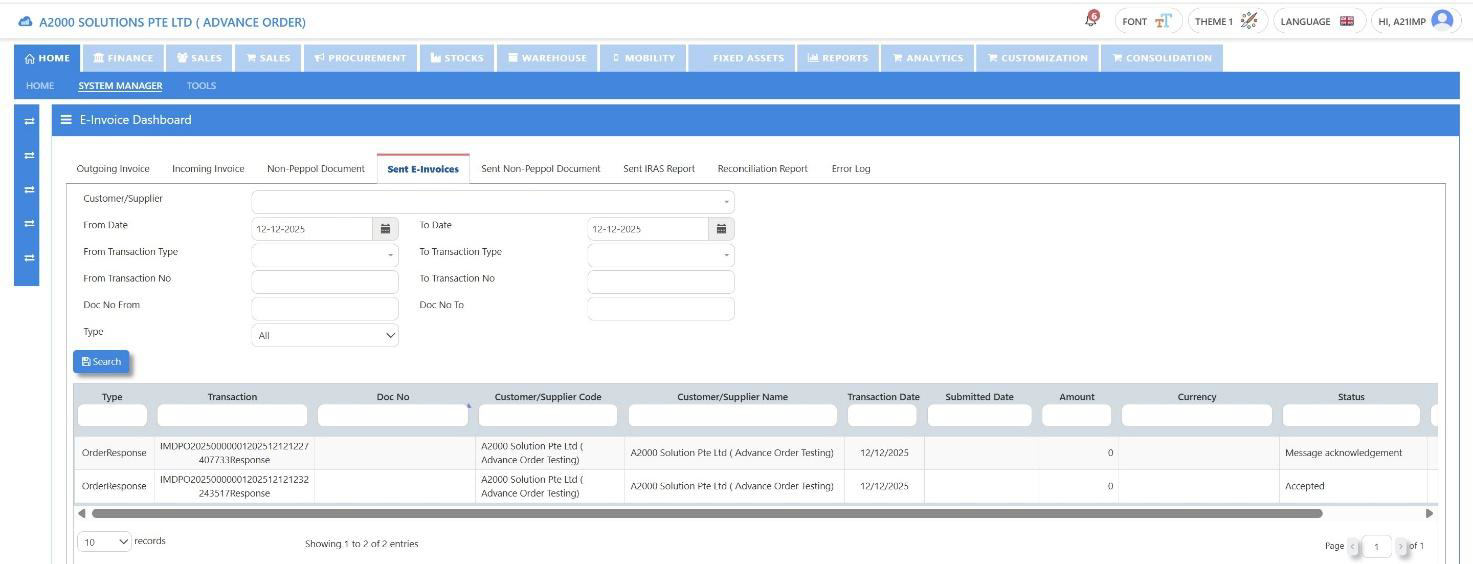
SP_AO_04.03 Order Response ID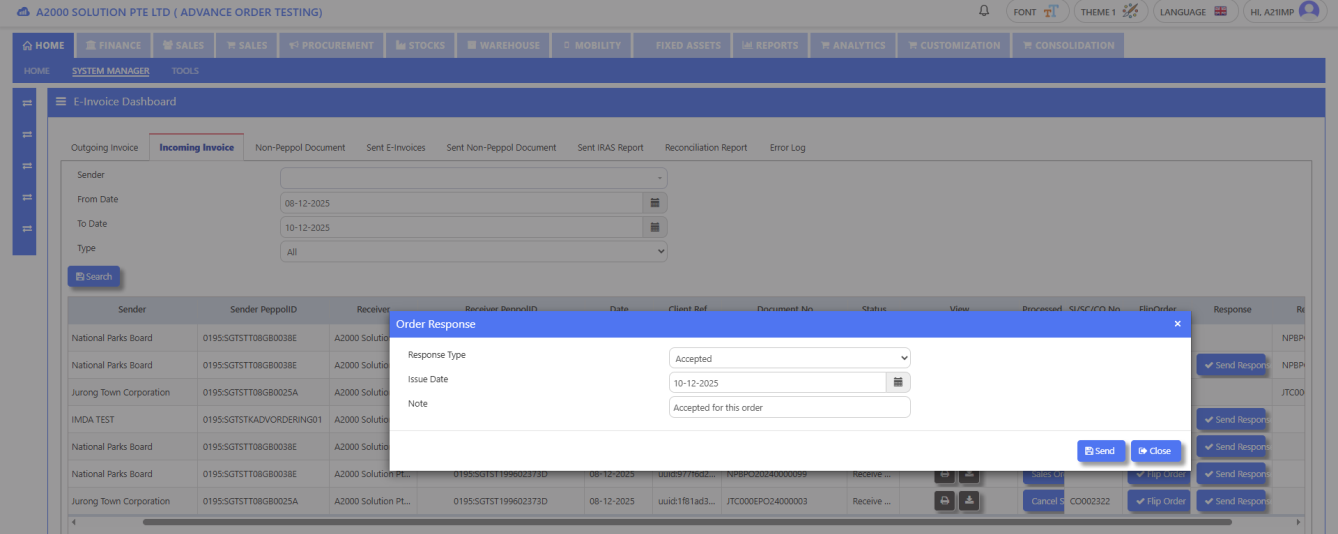
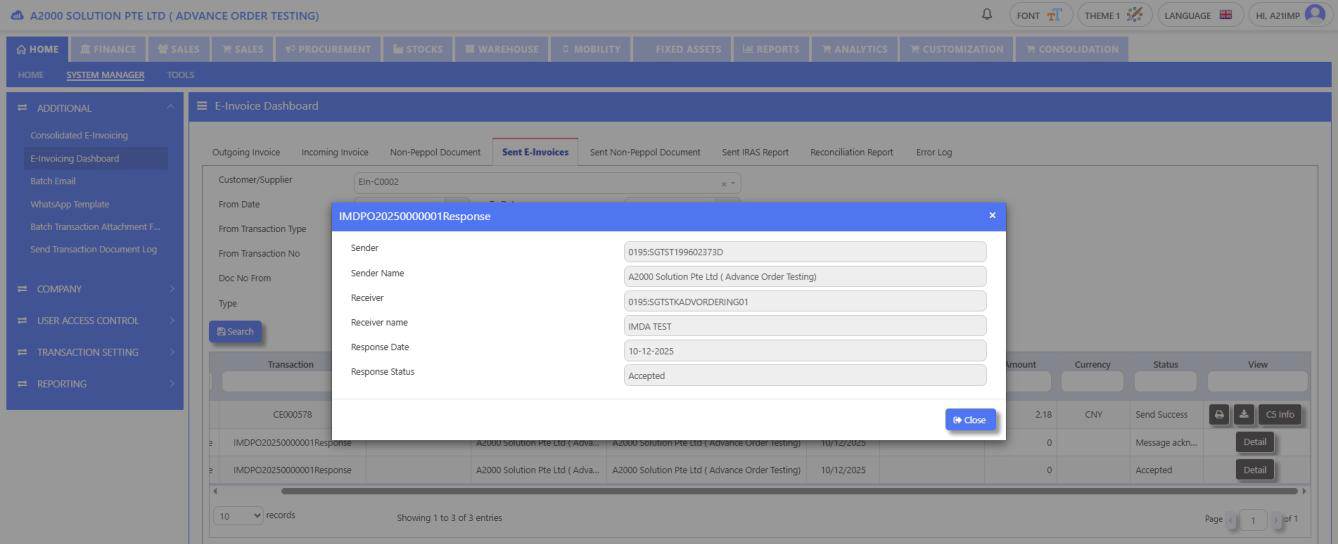
SP_AO_05 Direct Invoicing to Govt
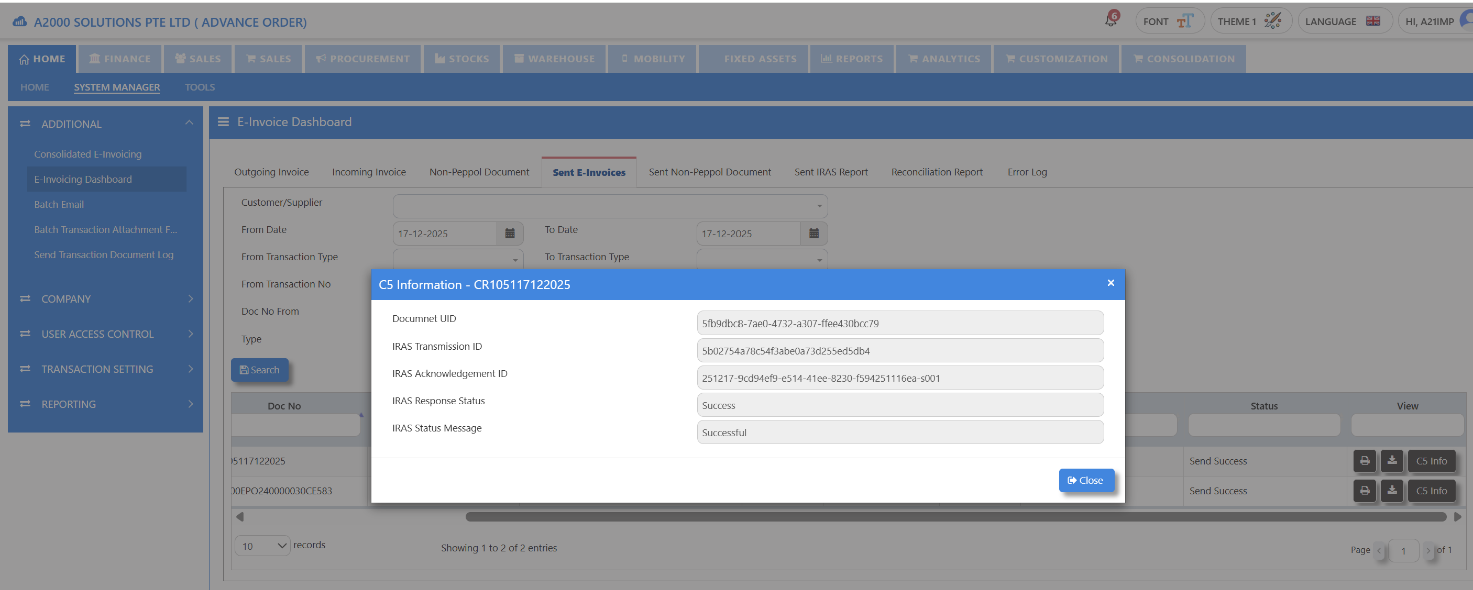
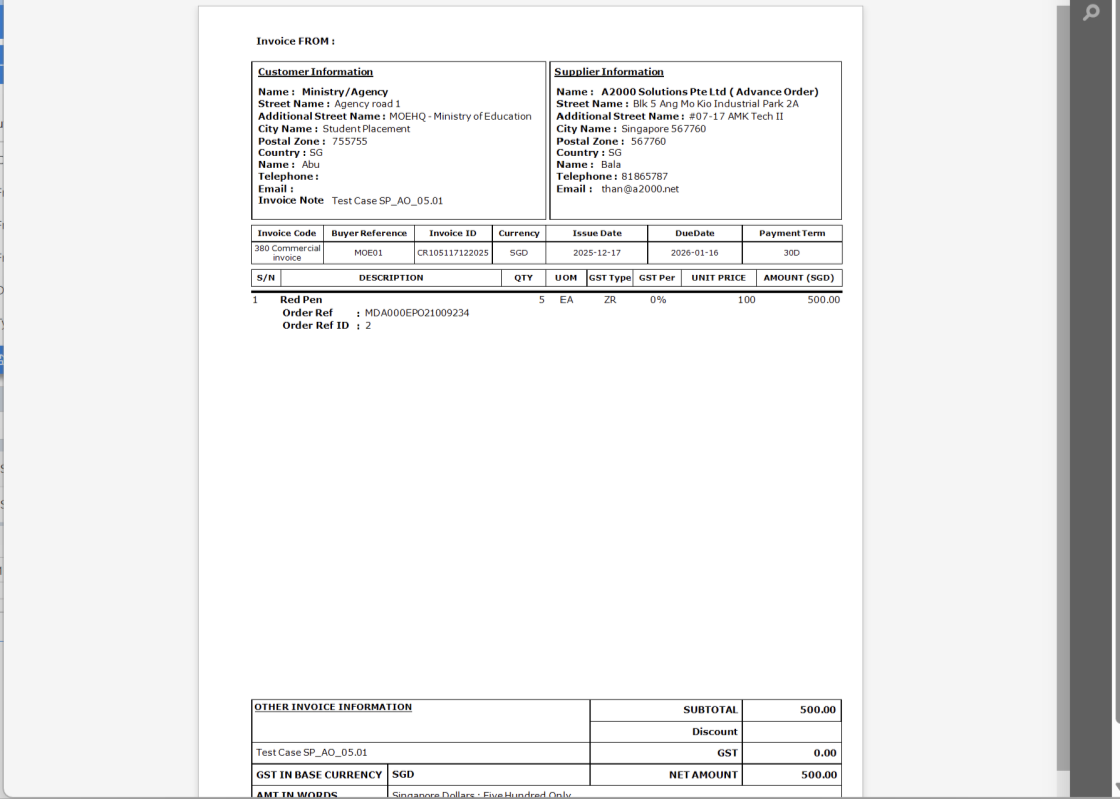
SP_AO_05.01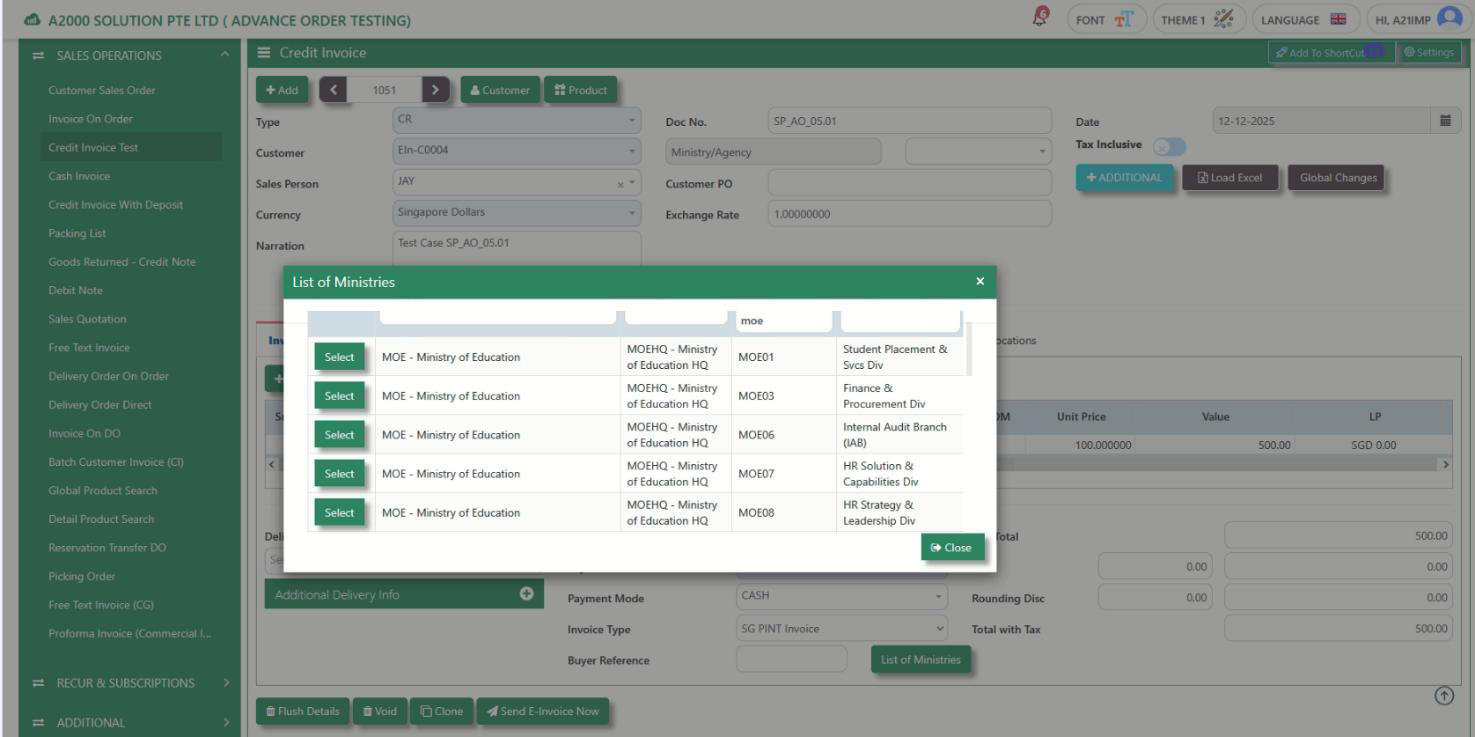
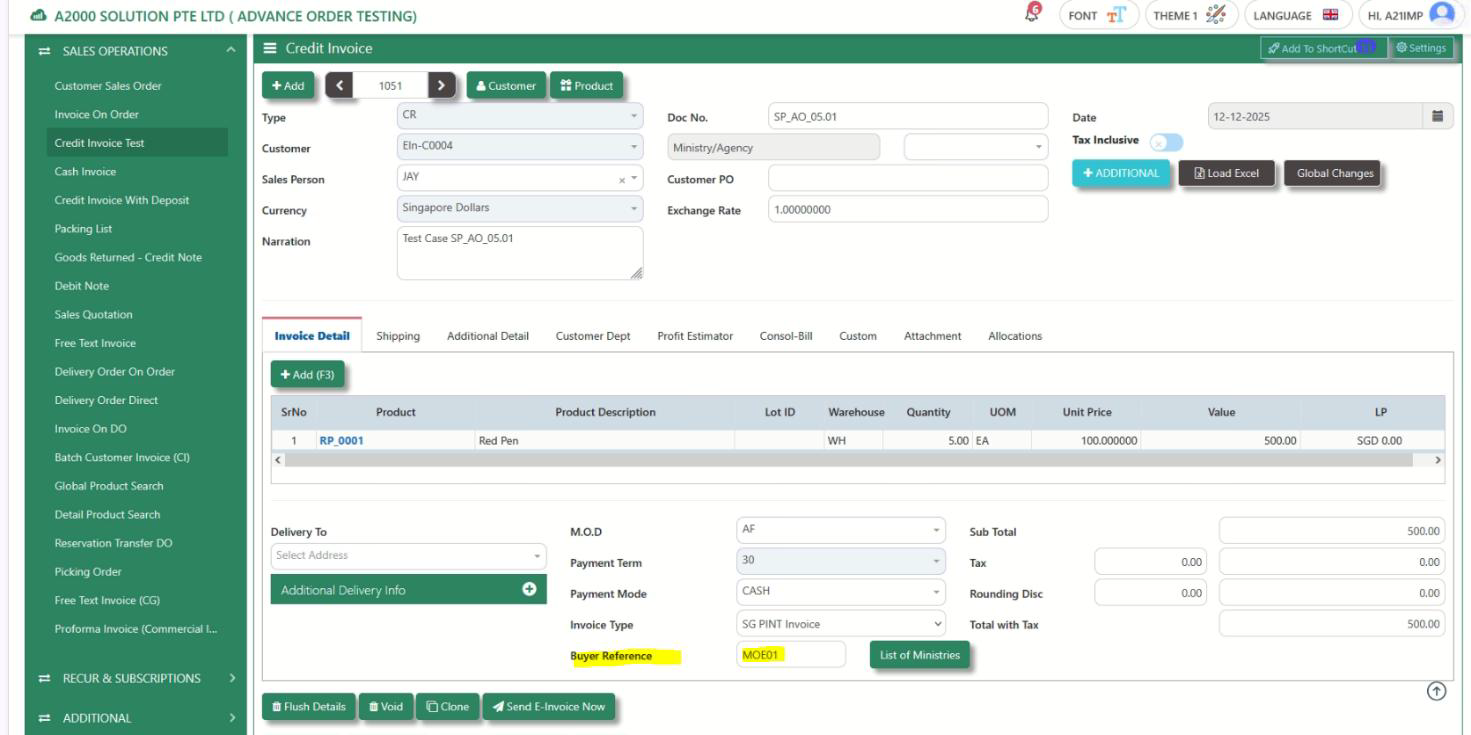
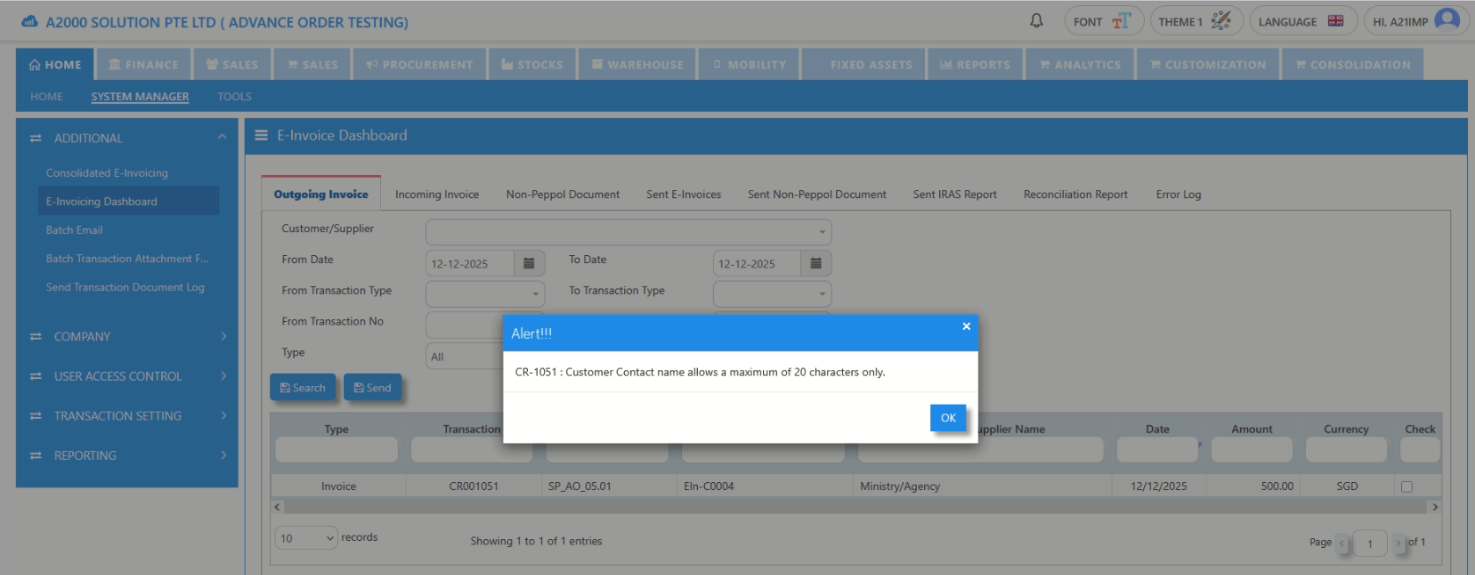
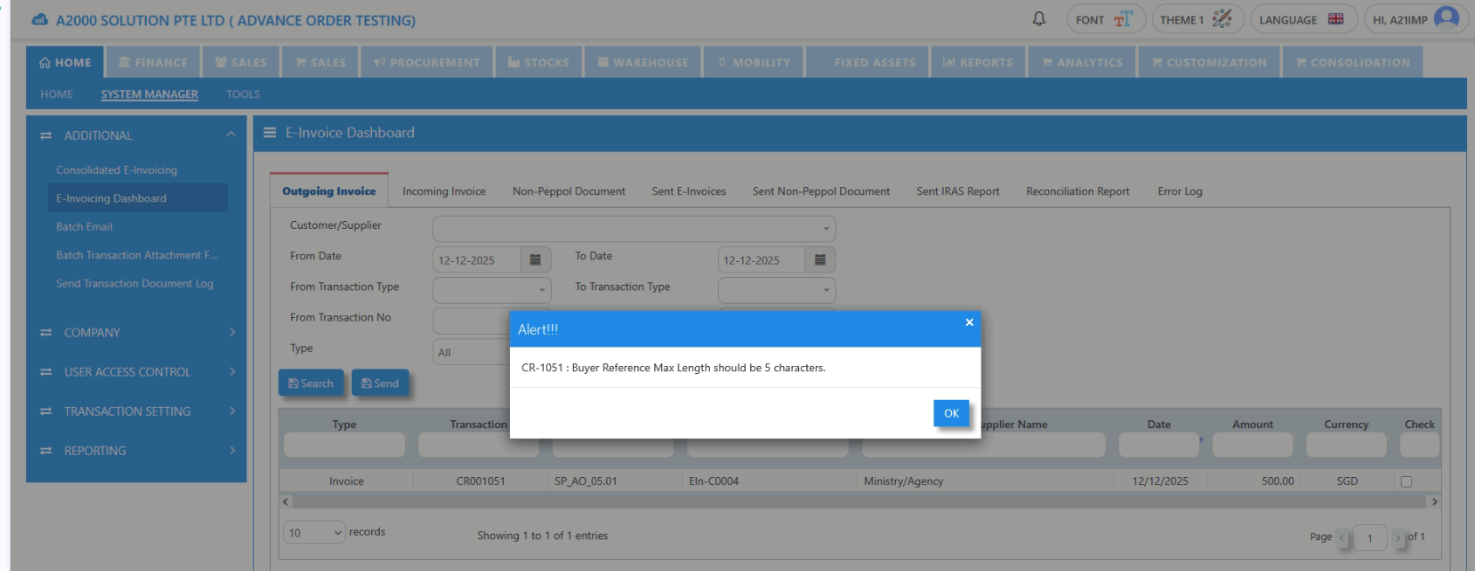
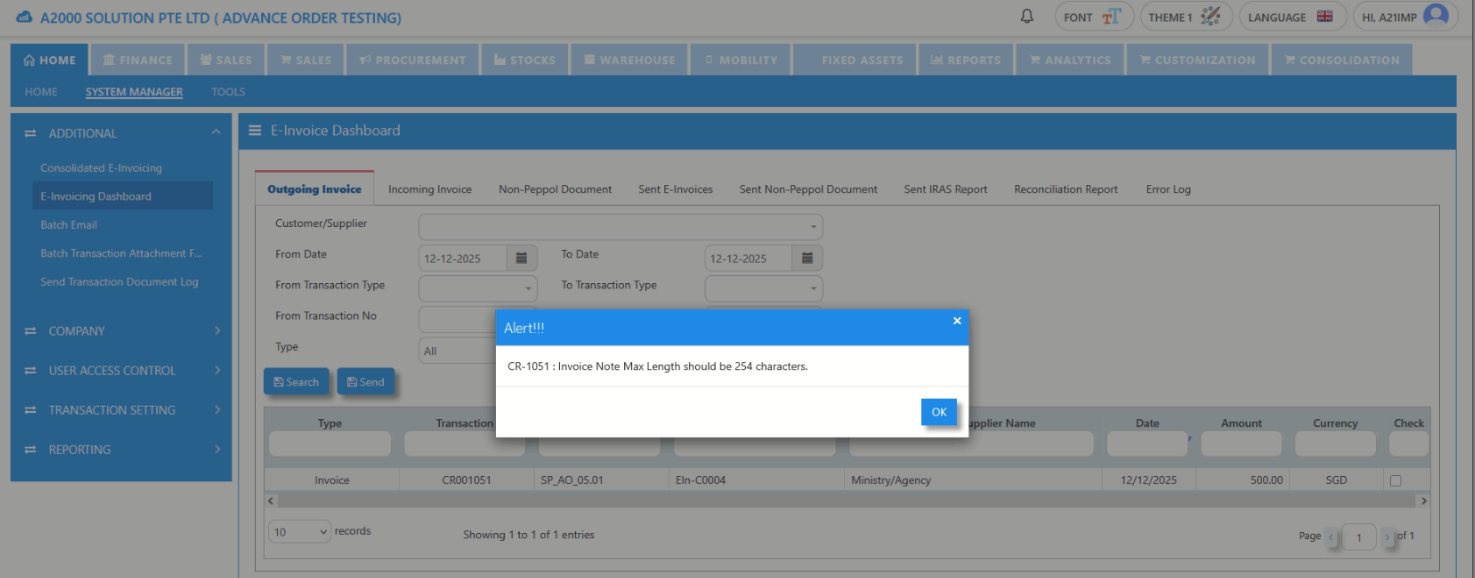
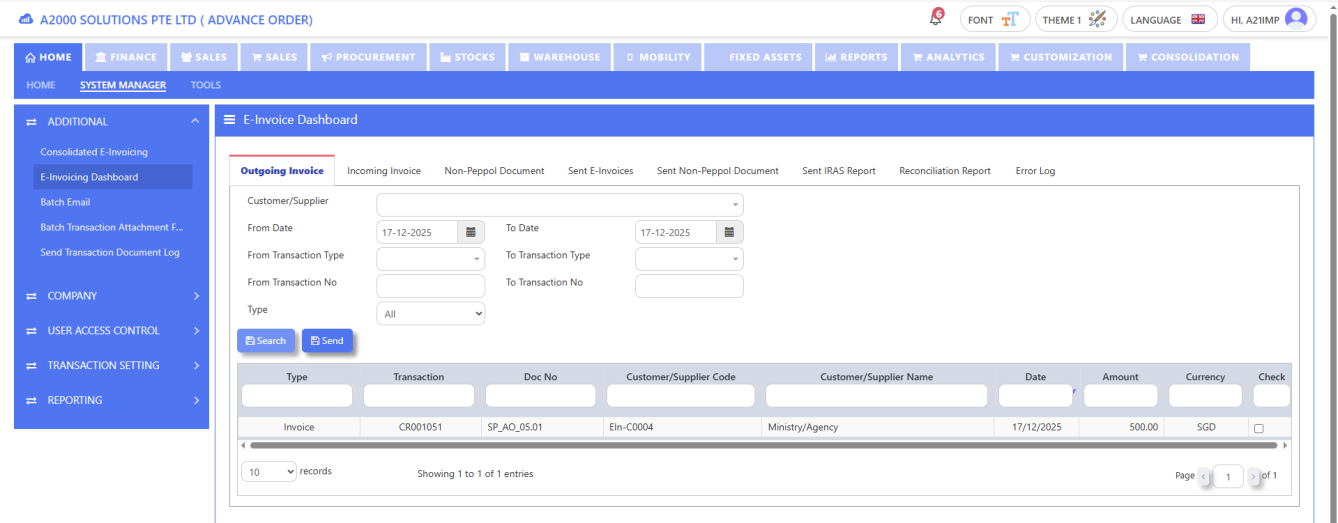
SP_AO_05.02 Invoice ID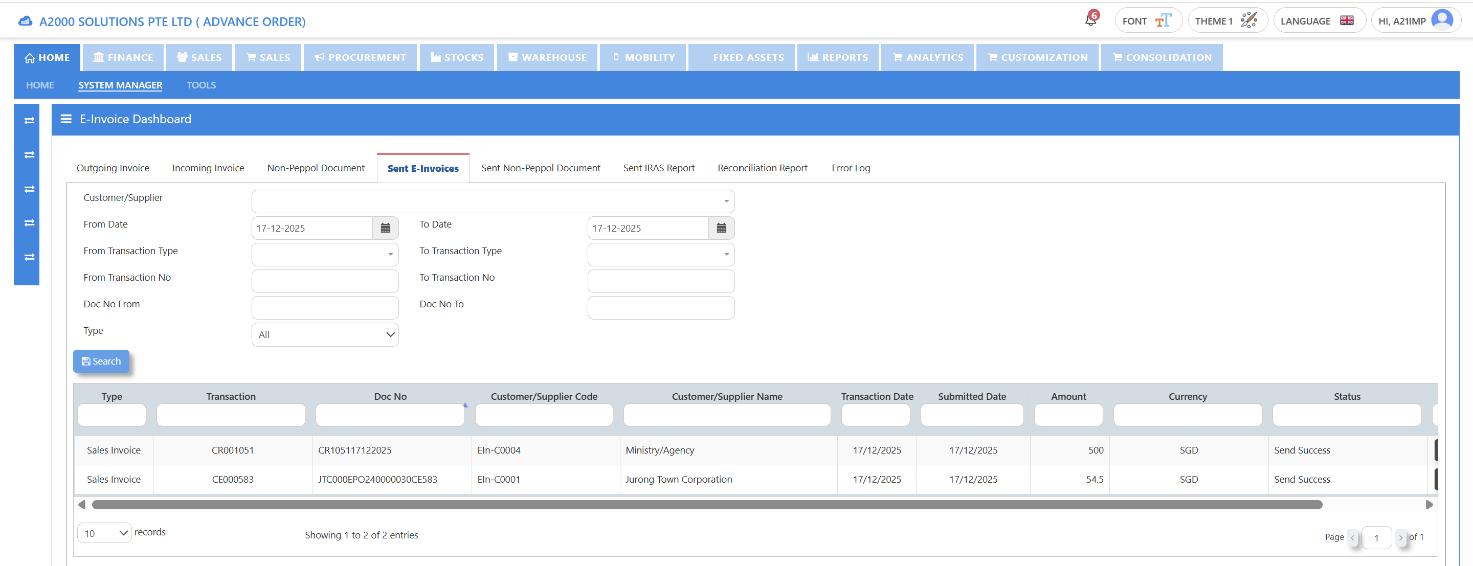
SP_AO_05.03 Invoice Response ID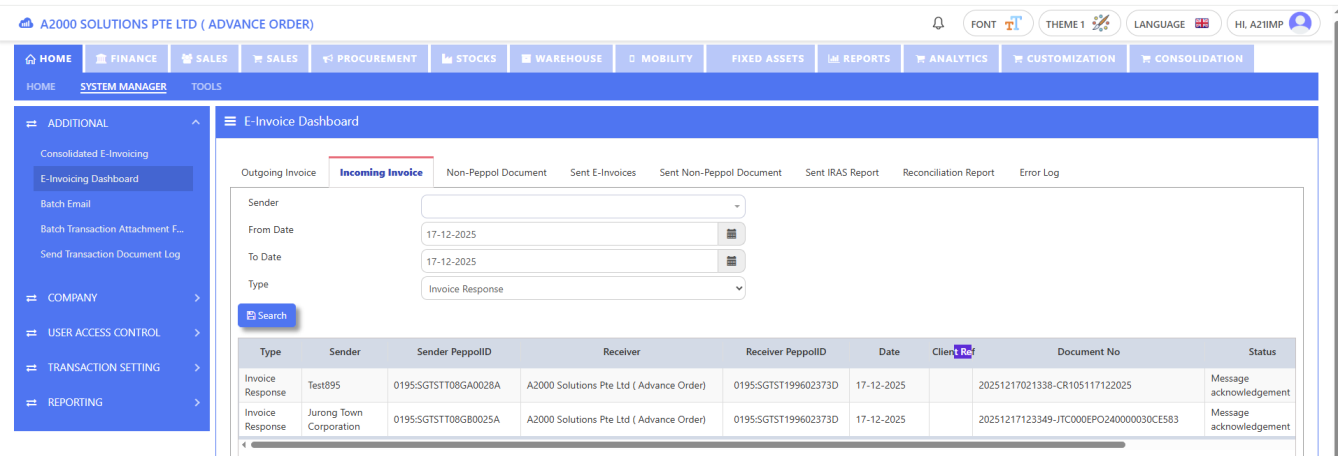
SP_AO_05.04 Invoice Response ID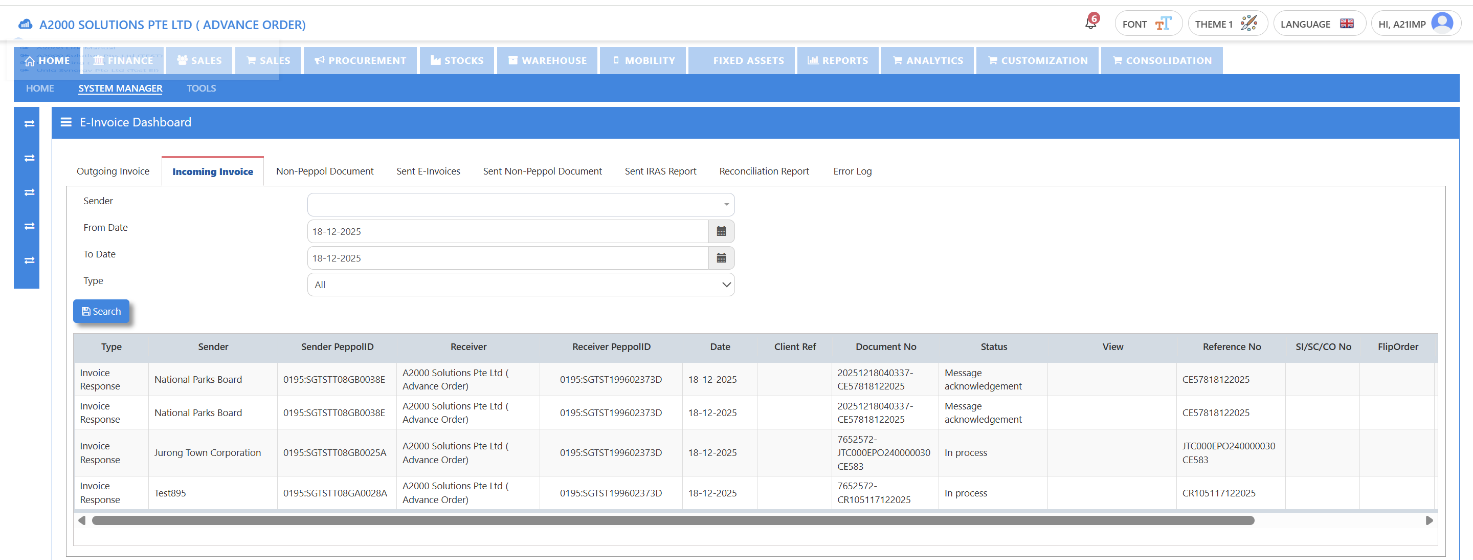
* END *

Disclaimer: The information provided here is provided on an as-is basis without warranty of any kind, either expressed or implied, including warranties of merchantability and fitness for a particular purpose. In no events shall A2000 Solutions Pte Ltd or its agents, distributors and suppliers (collectively known as A2000) be liable for any damages whatsoever including direct, indirect, incidental, consequential, loss of business profits or special damages, even if A2000 have been advised of the possibility of such damages. The names of actual companies and products mentioned herein may be the trademarks of their respective owners. All third party trademarks are the property of their respective owners.
Was this article helpful?
That’s Great!
Thank you for your feedback
Sorry! We couldn't be helpful
Thank you for your feedback
Feedback sent
We appreciate your effort and will try to fix the article